
Appearance
Exercise 2a: Explore the Salesforce MCP Servers with Claude
In this exercise, you'll connect your org to Claude and use Salesforce Hosted MCPs to investigate live Pronto data across storefronts, orders, customers, and reviews.
TIP
This workshop uses the Pronto sample app data model, where Storefront__c, Order__c, and Review__c are custom objects deployed in your org. This means standard MCP servers can query and act on live storefront and order data directly, with no external callout required.
Step 1: Connect Your Org to Claude
TIP
If you don't have access to Claude, sign up at claude.ai, or complete Exercise 2b: Explore the Salesforce MCP Servers with the AIforce Playground instead.
Open Claude. In the left sidebar, click Customize, then click Connectors.
Click Discover, then enter
Salesforcein the search box.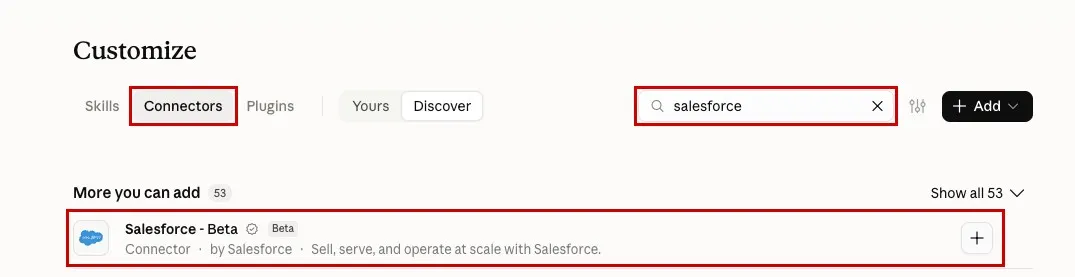
Connect the Salesforce - Beta connector to the Headless 360 server:
Click Salesforce - Beta to open it, then click Connect to Claude.
When Claude asks whether you have a client ID and secret, select Yes, I have them, then click Continue.
Enter these values:
Field Value Server URL https://api.salesforce.com/platform/mcp/v1/platform/headless-360OAuth client ID The Consumer Key from Exercise 1. OAuth client secret The Consumer Secret from Exercise 1. 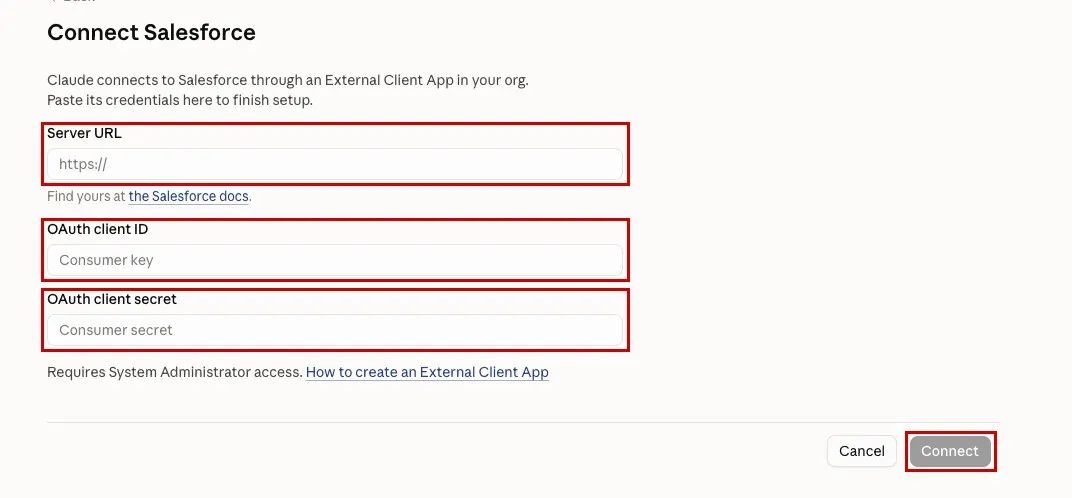
Click Connect. Log in to your Salesforce org and approve access if prompted, then return to Claude when the OAuth flow completes.
Add the sobject-all server as a custom connector:
On the Connectors page, click Add, then click Add custom connector.
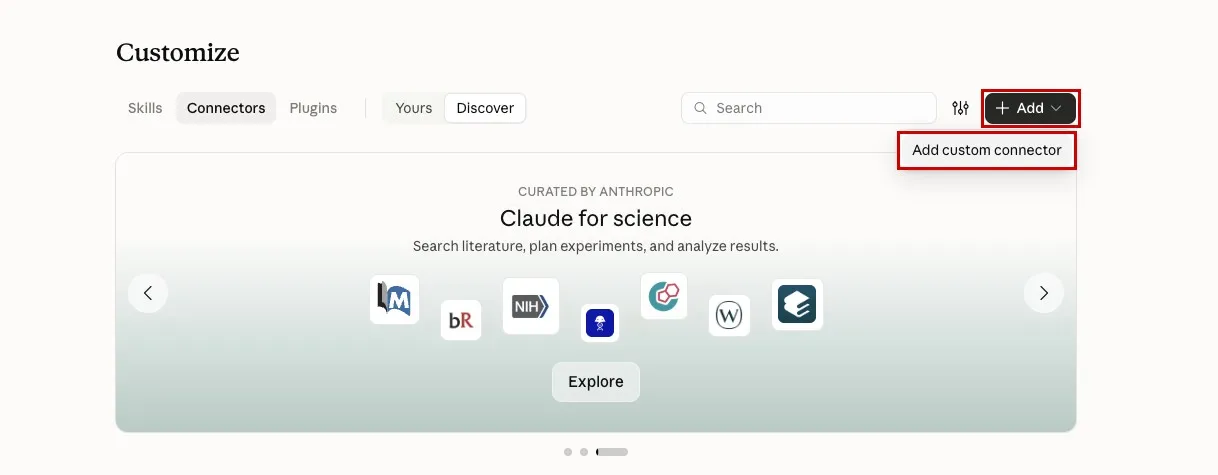
Enter these values:
Field Value Name sobject-allMCP server URL https://api.salesforce.com/platform/mcp/v1/platform/sobject-all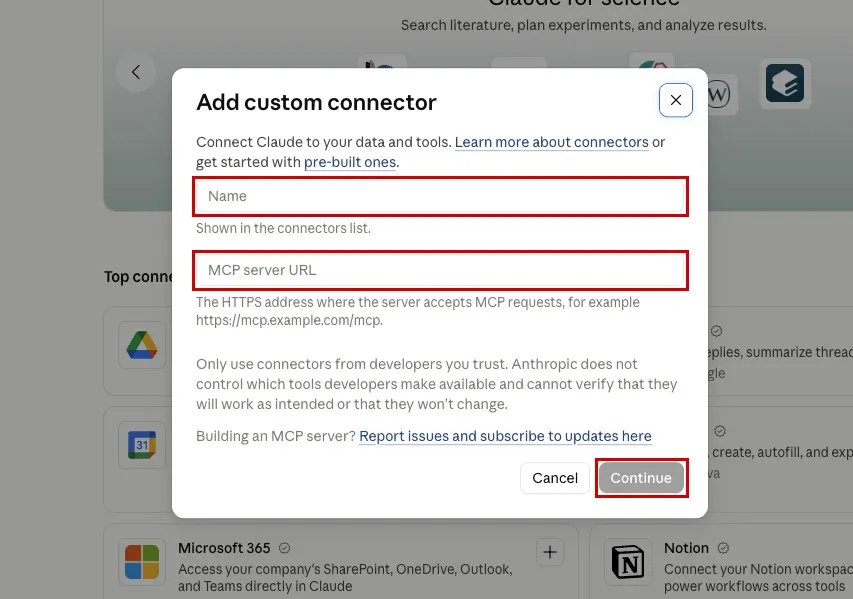
Click Continue.
When Claude asks for OAuth credentials, enter the Consumer Key as the OAuth client ID and the Consumer Secret as the OAuth client secret.
Click Connect. Log in to your Salesforce org and approve access if prompted.
TIP
The External Client App from Exercise 1 requires a secret, so Claude needs both the Consumer Key and the Consumer Secret. If Claude fails with invalid_client_id or the redirect fails, confirm that the app includes Claude's callback URL from Exercise 1, wait a few minutes, then try again.
You now have two Claude connectors: Salesforce - Beta, connected to the Headless 360 server, and sobject-all. Repeat the custom connector steps for any other Salesforce Hosted MCP server you want to use.
Step 2: Inspect the Pronto Data Model
In Claude, click New.
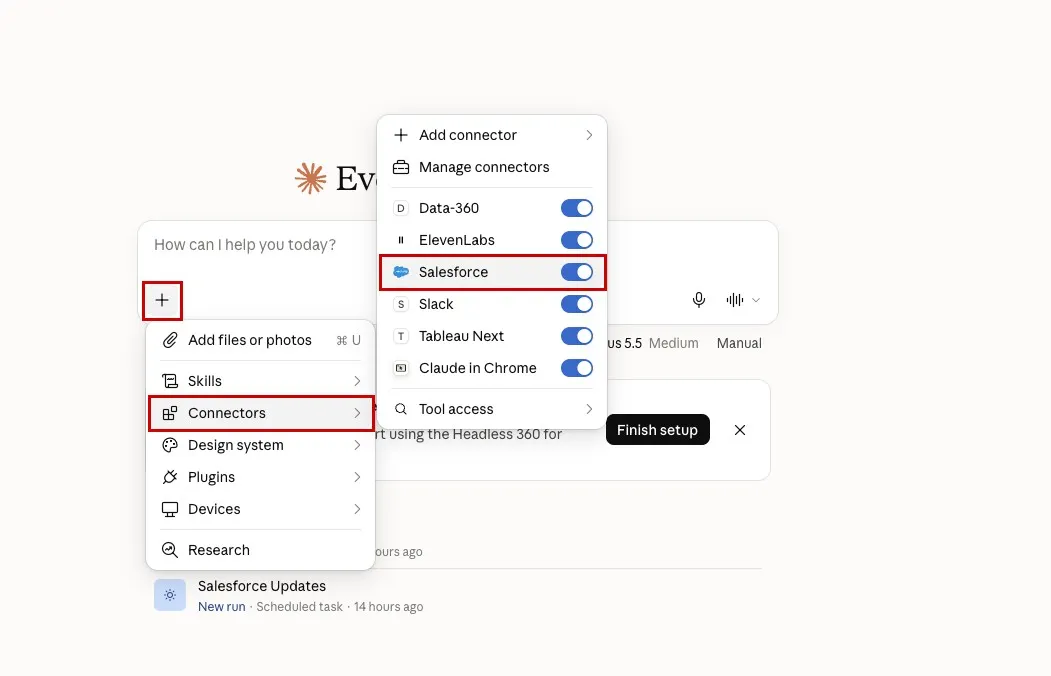
In the chat box, click +, select Connectors, then turn on Salesforce. This is the Salesforce - Beta connector, which connects to the Headless 360 MCP Server.
The Headless 360 MCP Server is a general gateway to Salesforce APIs. The LLM can discover what's available in your org, then call the platform's REST APIs directly, including the describe API that returns the fields and relationships of any object, custom objects like
Storefront__cincluded. That makes it a good fit for exploring the data model, as long as your prompt names the objects. It has no dedicated tools for records, so the LLM has to build each REST call itself. For querying and updating records in the next steps, you'll switch to SObject All, which gives the LLM a direct tool for each job.Try this prompt to identify the Pronto objects and fields that matter most for storefront and order analysis:
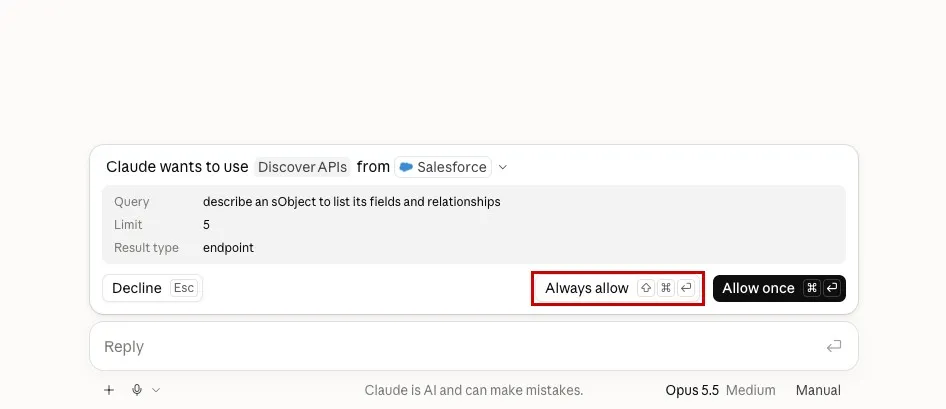
txtWhat Salesforce objects and fields are most relevant for understanding storefront and order activity in this org? Focus on Storefront__c, Order__c, Review__c, and Contact.When Claude asks for permission to use a tool, click Always allow.
Try this prompt to understand which fields can explain storefront performance, order status, and customer sentiment:
txtDescribe the key fields on Storefront__c, Order__c, and Review__c. Call out fields that help explain storefront rating and review volume, order status, and delivery timing.Review the response and note which fields the LLM chooses for the next investigation, especially
Average_Review_Score__candTotal_Reviews__con Storefront__c, andStatus__con Order__c.
Step 3: Find Storefront and Order Signals
Click New.
In the chat box, click +, select Connectors, then turn on sobject-all. This step and the rest of the exercise use this connector.
Try this prompt to sample the storefront data before asking more targeted questions:
txtShow me a sample of Storefront__c records by name, cuisine, status, average review score, and total reviews.Try this prompt to find storefronts with a high volume of canceled orders:
txtWhich Storefront__c records have the highest number of Order__c records with a status of Canceled? Summarize why each storefront may need operational attention.Try this prompt to find storefronts that look like they're struggling with customer satisfaction:
txtFind storefronts with a low Average_Review_Score__c or fewer than 5 Total_Reviews__c. Pull a sample of their Review__c comments to explain your reasoning.Review the response and notice how the LLM combines metadata, record filters, and business language to explain the results.
Step 4: Chain Related Records to Update an Order
Click New.
Run this prompt to cancel an order on behalf of a customer:
txtCancel the most recent order placed by Leola Oliva at Urban Table Uptown. Set the cancellation reason to "Customer requested cancellation, item unavailable".Note how the MCP tools are chained: the LLM first queries Contact and Storefront__c to resolve the two names, then queries Order__c to find the matching order, then updates that order's
Status__candCancelation_Reason__c.TIP
We'll use this same chaining pattern, resolve a name to a record, then act on it, again in the next exercise.
Step 5 (Optional): Turn Salesforce Data into Outputs
Click New.
Ask the LLM to create a chart from the Salesforce data it queried.
txtCreate a bar chart that compares Order__c volume by order status. Use the live order data you can access through Salesforce MCP tools.Try a second chart prompt.
txtCreate a pie chart that shows Review__c count by rating, across all storefronts.Try a trend-style prompt.
txtCreate a line chart or timeline that shows Order__c volume over time for Urban Table Downtown. Explain any spike or drop you see in the data.Ask the LLM to render a PDF-style executive summary.
txtCreate a one-page PDF summary for a Pronto operations lead. Include the strongest and weakest performing storefronts by average review score, the most recently canceled orders, review trends, and the next questions an operations lead should ask.Review the chart or PDF output and confirm that it cites live Salesforce records rather than generic advice.
Summary
- You connected Claude to your Salesforce org with your External Client App credentials.
- You used the Headless 360 MCP Server to inspect the Pronto data model.
- You used SObject All to
- uncover storefronts with canceled orders and low review scores, all queried directly from the real, SOQL-queryable
Storefront__c,Order__c, andReview__cobjects. - chain a name lookup across
Contact,Storefront__c, andOrder__cinto a live order update. - ask the LLM to turn Salesforce MCP results into charts and a PDF-style summary.
- uncover storefronts with canceled orders and low review scores, all queried directly from the real, SOQL-queryable
Next, you'll create your own custom MCP server for guided business actions.