


Health Cloud Administration
 j
jCustomize the Action Launcher in the Contact Center
Create your own quick actions and configure them in the Contact Center Action Launcher
component. For example, if the contact center agent frequently gets requests to add patient
medications, create a deployment from the Action Launcher in Setup.
|
Available in: Lightning Experience Available in: Enterprise and Unlimited Editions with Health Cloud |
| User Permissions Needed | |
|---|---|
| To use the Contact Center for Health Cloud | Manage Contact Center for Health Cloud |
- From Setup, in the Quick Find box, enter Action Launcher, and then click Action Launcher.
- Click New Deployment, and click Next.
- Enter a label. The API name is auto-updated.
- Select whether you want to add flows and quick actions or OmniScripts, or both. Click Next.
- Select the object for which you want to show the actions. For the Contact Center, select Account as the object, and Click Next.
- From the list of available actions, screen flows or OmniScripts, choose items that appear in the Action Launcher search results. Click Next.
-
Select frequently used actions to pin to the Action Launcher.
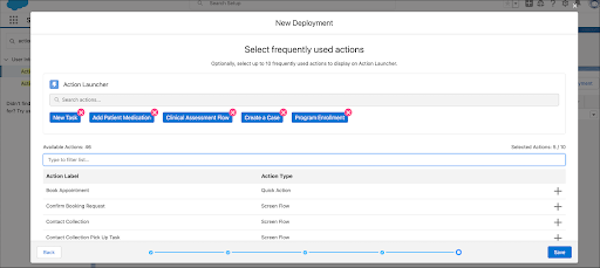
- Save your changes.
- From the App Launcher, go to the Contact Center and open the person account’s record page in Lightning App Builder.
-
In the Properties pane, in Action Launcher Deployment, add the deployment you
configured.
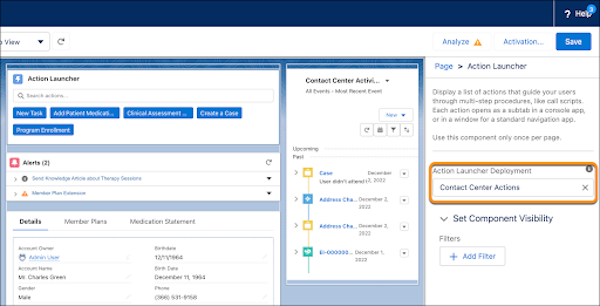
- Activate and save your changes