


Health Cloud Administration
 j
jCustomize the Health Cloud Apps
You can change some of the properties of the Health Cloud Apps. For example, you can add
the Knowledge widget so that care coordinators can see articles and protocols from the console
footer. You can also do things like add your company’s logo, change the color of page elements,
and enable keyboard shortcuts in the Health Cloud console.
|
Available in: Lightning Experience Available in: Enterprise and Unlimited Editions with Health Cloud |
| User Permissions Needed | |
|---|---|
| To view apps: | View Setup and Configuration |
| To manage apps: | Customize Application |
- From Setup, in the Quick Find box, enter Apps, and then select Apps.
-
Click Edit next to the app you want to modify.
Select Health Cloud - Admin, Health Cloud - Worklist, or Health Cloud - Console.
- Specify a label for the app. The label can have a maximum of 40 characters, including spaces. This label is the app’s name in the app menu.
-
Optionally, specify a custom logo for the app. Click Insert an image
and choose an image file from the document library.
Consider these requirements when choosing a custom app logo for a Classic app from the document library:
- The image must be in GIF or JPEG format and less than 20 KB.
- If the image is larger than 300 pixels wide by 55 pixels high, then it’s scaled to fit.
- For the best on-screen display, we recommend that you use an image with a transparent background.
- The Externally Available checkbox must be selected on the document’s properties so that users can view the image.
-
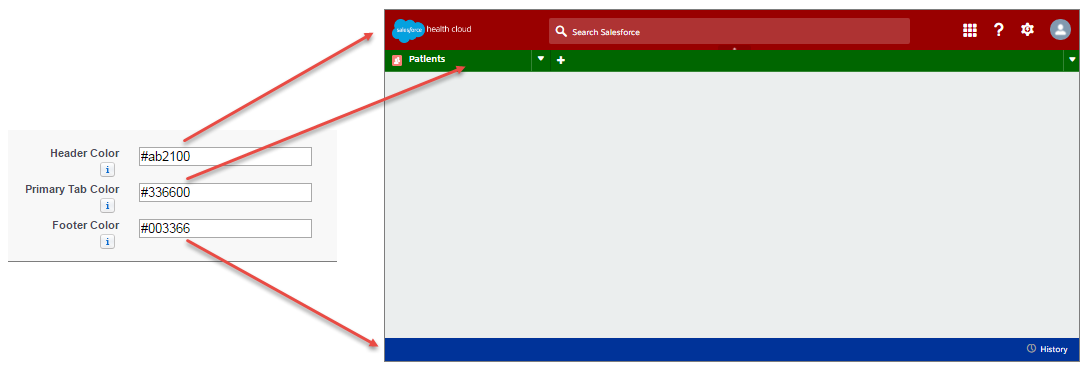
Optionally, to change the color of the app’s page elements, enter the hex code beginning
with #.
-
Ensure that Patients, Candidate Patients, and
Today are selected as navigation tabs and that they’re configured to
display as primary tabs in the Choose How Records Display selection.
If you create your own custom apps, like a Dashboards tab, select it to display in the Health Cloud app and configure how it displays in the console. Also, if you’re using theCRM Analytics for Health Cloud: Risk Scoring App, add the related tabs to the Health Cloud app. That way, each user profile can see the tabs by default.
- Optionally, select how the list is placed in the console.
-
In Choose Console Components, add Knowledge One to Selected
Items.
When the Knowledge One widget is enabled, care coordinators can access articles and protocols from the console footer.
- In Align Custom Console Component, choose whether the component appears in the footer’s right or left side.
- To let care coordinators perform actions using key combinations instead of the mouse, click the Customize Keyboard Shortcuts.
- Make sure that Save User Sessions, Enable Multi-Monitor Components, Pin Tabs, and Responsive Lists are all selected.
- Select the Visible option for every profile that needs access to the app.
- Select the Default box to set the app as that profile’s default app.
- Click Save.