


Health Cloud Administration
 j
jConfigure the Page Layouts for Product Transfer and Product
Configure the page layouts of Product Transfer and Product before your users start
using Intelligent Sales. The default layout doesn’t include Source Location, Status, and
Expected Pickup Date fields for Product Transfer, and the Serialized field for Product. You must
add these fields to the page layouts.
|
Available in: Lightning Experience Available in: Enterprise and Unlimited Editions with Health Cloud or Health Cloud for Life Sciences |
| User Permissions Needed | |
|---|---|
| To modify page layouts: | Customize Application |
- From Setup, in the Quick Find box, enter Object Manager, and then select Object Manager. Next, click Product Transfer, and then go to the Page Layouts section.
- Select Product Transfer Layout.
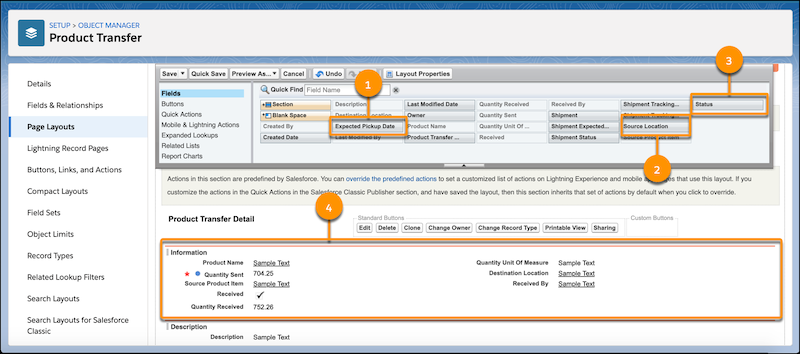
- From the Fields menu, move (1) Expected Pickup Date, (2) Source Location, and (3) Status, and place them in the (4) Information section of Product Transfer Detail.
-
Save your changes.
- Similarly, from object management settings for Product, go to Page Layout and select Product Layout.
- From the Fields menu, drag Serialized onto an editable area of the page.
- Save your changes.
The Product Transfer object now has all the attributes necessary to store transfer
requests for your sales reps.