


Health Cloud Administration
 j
jSet Up the Information Sources for a Relationship Card
Relationship cards show your users information about practitioners and the facilities
where they work. What is shown on the card is up to you. It might include the doctor’s contact
information, accounts the practitioner has a relationship with (employer, hospital affiliations,
practice locations, billing company, etc.), details of the practitioner’s relationship to those
accounts, and some key information about the related accounts.
|
Available in: Lightning Experience Available in: Enterprise and Unlimited Editions with Health Cloud |
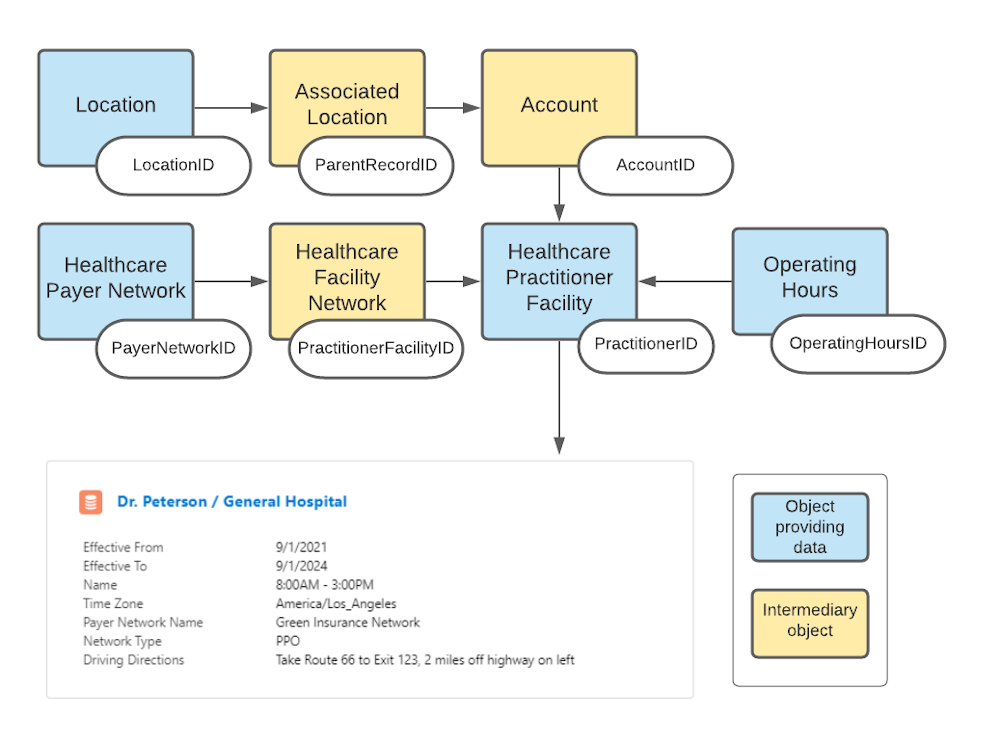
As an example, let’s build a relationship card that users will encounter on the Contact record page when they look up a doctor. This card will provide the key things users need to know in order to interact with a given practitioner at a specific facility. In this case, that practitioner is Dr. Carol Peterson, who works at General Hospital. (If Dr. Peterson also works at other locations, a similar card shows up to describe her activities at each location.) We’ll assume users will want to see a few key fields on the card:
| Field | Purpose | Object Where Info is Stored |
|---|---|---|
| Effective To | When Dr. Peterson’s working relationship with General Hospital is scheduled to end. | Healthcare Practitioner Facility |
| Effective From | When Dr. Peterson’s working relationship with General Hospital began. | Healthcare Practitioner Facility |
| Operating Hours | Times during which Dr. Peterson sees patients at General Hospital. | Operating Hours |
| Time zone | The time zone General Hospital is in. | Operating Hours |
| Payer Network Name | Health insurance company that covers Dr. Peterson’s work at General Hospital. | Healthcare Payer Network |
| Network Type | The type of insurance plan, such as PPO, HMO, or EPO. | Healthcare Payer Network |
| Driving Directions | Instructions for getting to General Hospital. | Location |
- In Setup, go to Provider Relationship Cards and click New.
-
Give the card a name that describes what it’s for, such as “Doctor-Hospital
Relationship.”
Select the page your users will see this card on. In this case, it will be the Contact record page. Pick the Master record type.
-
Specify how the object where the basic information is coming from is related to the
Contact object, which is where the user will see the card.
In the simplest case, all the information you need would be in the Contact object. In that case, you could select Same object and be done. In this case, however, we want to show some further information that’s not in the Contact object. The information about Dr. Peterson’s available hours comes from the Operating Hours object; the information about insurance coverage comes from the Healthcare Payer Network object, and the travel directions come from the Location object. All of these objects are related to the Contact object through the Health Care Practitioner Facility object, so we’ll select Indirectly.
-
Select the object that contains the essential information.
You can think of it as a hub-and-spoke model, with the Healthcare Practitioner Facility object as the hub, because the main point of the card is to show the practitioner's available hours at the facility. If the main point were to show a provider’s qualifications, we might choose the Accreditation object as the hub.
Now you're ready to design the card itself, with information drawn from the objects
you've selected.