


Health Cloud Administration
 j
jLocalize Labels in Multilingual Orgs
If you have a multilingual org, use the Translation Workbench to localize the labels in
the Health Cloud console. Specify languages you want to translate, create translations for
customizations you’ve made, and override the labels in Health Cloud.
|
Available in: Lightning Experience Available in: Enterprise and Unlimited Editions with Health Cloud |
| User Permissions Needed | |
|---|---|
| Create, edit, or delete custom labels: | Customize Application |
| Create or override a translation: | Manage Translation OR View Setup and Configuration and be designated as a translator |
Custom labels are custom text values that can be accessed from Apex classes, Visualforce pages, or Lightning components. The values can be translated into any language Salesforce supports. Custom labels enable developers to create multilingual applications by automatically presenting information (for example, help text or error messages) in a user's native language.
- To access custom labels, from Setup, enter Custom Labels in the Quick Find box, then select Custom Labels.
-
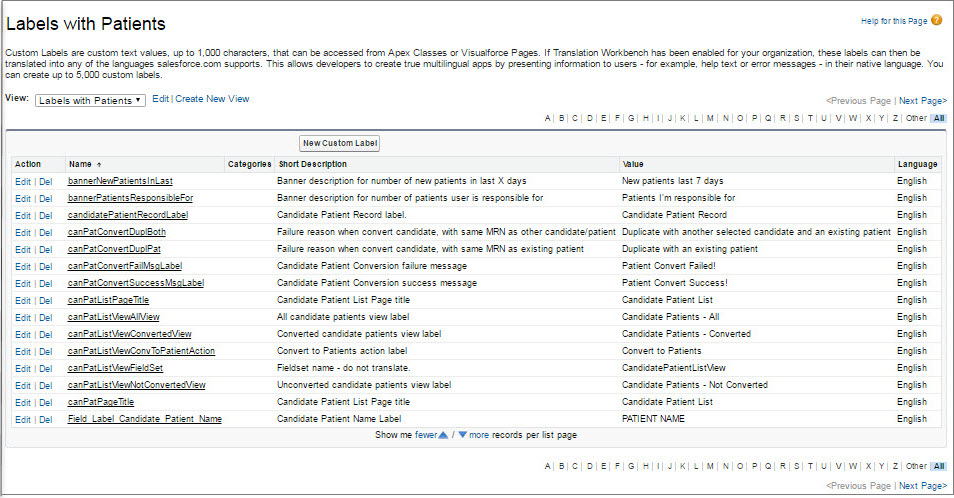
Create a view that shows the labels that you want to localize.
This example shows a view with custom labels that include the word Patient.
- Select the name of the custom label you want to translate.
- In the Translations related list, click New to enter a new translation or Edit next to the language to change a translation. If you click Delete, Salesforce confirms that you want to delete, then removes the translation from the custom label.
- Select the Language you are translating into.
- Enter the Translation Text. This text overrides the value specified in the label's Value field when a user's default language is the translation language.
- Click Save.