
Appearance
Exercise 5: Extend Agents with APIs
In this exercise, you'll create a new subagent that looks up Pronto orders by customer email address. Because orders live in a 3rd-party system (not Salesforce), you'll connect Salesforce to the Orders API using External Services, then expose it to your agent through an Agent Action.
Step 1: Create the Order Lookup subagent
Next, create a subagent that acts as the entry point for order lookup workflows.
In Agentforce Builder, hover over Subagents in the explorer, and click the + sign.
Select Create new subagent.
Set the following values:
Field Value Name Order LookupsDescribe the job you want the subagent to do Looks up Pronto orders for a customer using their email address, then uses the order context to support tracking, reviews, and case creation.Click on Create and Open.
Click Save.
Paste the basic subagent instructions below (you can refine later):
txtThis subagent is used to look up Pronto orders for a customer based on their email address. Orders are stored in a 3rd-party order database (not Salesforce). Use the Orders API action to retrieve: - Recent orders - Orders by date range - The status of a current order If a user wants to look up a recent order, track an order, leave a review, or create a new case, we must first look up the order. Ask for the customer's email address if it is missing.Click Save.
Step 2: Create an External Service for the Orders API
Next, create an External Service from an API specification so Flows can call the Orders API.
Click the back arrow to leave Agentforce Builder.
Open the Setup Menu and click Setup.
In Quick Find, search for External Services and open it.
Click Add an External Service.
Select From API Specification, then click Next.
Enter the following values:
Field Value Name ProntoOrdersDescription Pronto Orders APIService Schema Relative URLNamed Credential Pronto_Orders_APIURL /swagger.jsonClick Save & Next.
In the Select Operations step, select the
listOrdersandlistOrdersByEmailoperators. These operators let you search for orders by email.Click Next.
Click Finish.
Step 3: Create an API-backed Agent Action
Next, create an Agent Action that calls the Orders API via the ProntoOrders External Service.
In Agentforce Builder, open the Order Lookup subagent.
Click on the arrow besides Select action, and select Create an action.
Set the following values:
Field Value Name Lookup OrdersDescription Retrieves a customer's orders from Pronto's external Orders system using their email address.Reference Action Type APIReference Action Category External ServicesReference Action List OrdersClick Create and Open.
Click Save.
Update the following Inputs and Outputs:
Field Value Inputs - Contact Email Select checkbox Require Input to execute actionOutputs - 200 Select checkbox Show in conversationTIP
The
200output is the default successful response from the API and typically contains an array of orders.Click Save.
Step 4: Configure the Order Lookup subagent
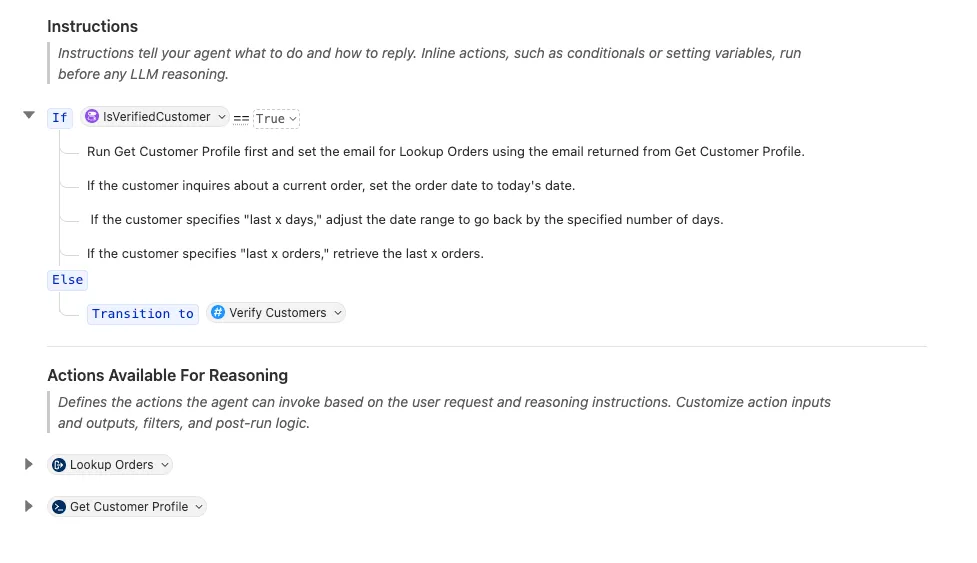
Next, add both actions to the subagent canvas and update the instructions so the agent only runs them after the customer is verified.
In Agentforce Builder, open the Order Lookup subagent.
In the subagent, you can reference an existing action by adding a new line after an action bubble. Add a new line under the existing actions and on arrow besides Select action, and select Get Customer Profile.
In the Instructions block, type
/to open the resource picker.Select Conditional Statement.
Select the
IsVerifiedCustomervariable.Leave the default
==operator and set the value toTrue.In the True branch, add instructions that tell the agent how to calculate inputs and run the actions:
txtRun Get Customer Profile first and set the email for Lookup Orders using the email returned from Get Customer Profile. If the customer inquires about a current order, set the order date to today's date. If the customer specifies "last x days," adjust the date range to go back by the specified number of days. If the customer specifies "last x orders," retrieve the last x orders.Under the Else block, open the resource picker again and select Transition.
Under the Else block, add a transition to Verify Customers.
Click Save.
Step 5: Test the agent
Click Preview.
Enter the following prompt:
txtCan you show me my last 3 orders?Press Enter on your keyboard.
If the agent asks for an email address, enter
alex.morgan@example.comand press Enter.After verification completes, confirm the agent runs Get Customer Profile and then Lookup Orders to query the Orders API.
In the Interaction Details area, click on Action: Lookup Orders and review the inputs and outputs.
Summary
You have connected Salesforce to a 3rd-party Orders API using External Services and extended your agent with API and Apex actions that retrieve customer context and look up orders using verified customer identity.