
Appearance
Exercise 3: Create a Sales Email Template (Restaurant Recommendations)
In this exercise, you’ll use a Sales Email prompt template to draft a personalized email that recommends Pronto storefronts to a customer based on their favorite cuisine and city. You’ll use a Flow to ground the email in Pronto storefront data (Storefront__c).
Step 1: Enable Sales Email templates
In Setup, search for Einstein for Sales in Quick Find and select Einstein for Sales.
Enable Sales Email Prompt Templates by setting Turn on Sales Emails to True.
Enable Customization by setting Add Email Prompt Instructions to True.
Step 2: Create a flow that grounds a prompt in customer data
In this step, you’ll create the Flow that will be used to ground the email prompt template with a list of storefront recommendations that match a customer’s preferences.
In Setup, search for Flow in Quick Find and select Flows.
Click New Flow.
Select Template-Triggered Prompt Flow.
In the right panel, select Automatic Inputs and configure the Start element as follows:
Field Value Prompt Template Type Sales Email Template Capability Recipient Contact Related Object <Leave empty>
Get storefront recommendations that match cuisine and city:
Mouse over the circle under the Start element, click +, and select Get Records.
In the right panel, configure the Get Records action as follows:
Field Value Label Get Storefronts API Name Keep default Description Get a list of storefronts that match the customer’s cuisine and city Data Source Salesforce Object Object Storefront Condition Requirements All Conditions Are Met (AND) Define conditions that represent the customer’s preferences. Use fields available in your org for customer preferences. A common pattern is:
- Cuisine matches the customer’s favorite cuisine
- City matches the customer’s city
- Status is Active (if your org uses a storefront status)
Under How Many Records to Store, select All Records.
(Optional) Sort and limit the results (for example, return the top 5 storefronts).
Add each matching storefront to the prompt:
Mouse over the circle under the Get Storefronts element, click +, and select Loop.
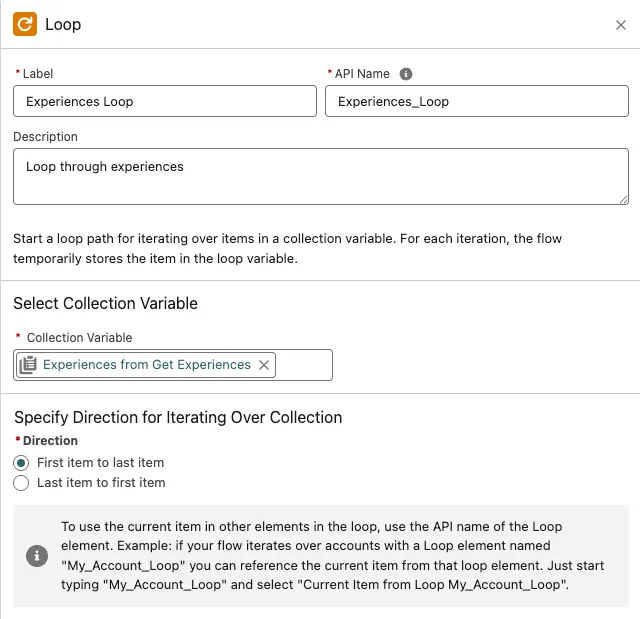
In the right panel, define the loop element as follows:
Field Value Label Storefronts Loop API Name Keep default Description Loop through storefronts Collection Variable Storefronts from Get_Storefronts Use the screenshot below to confirm you entered the right values.
Mouse over the circle inside the For Each element, click +, and select Add Prompt Instructions.
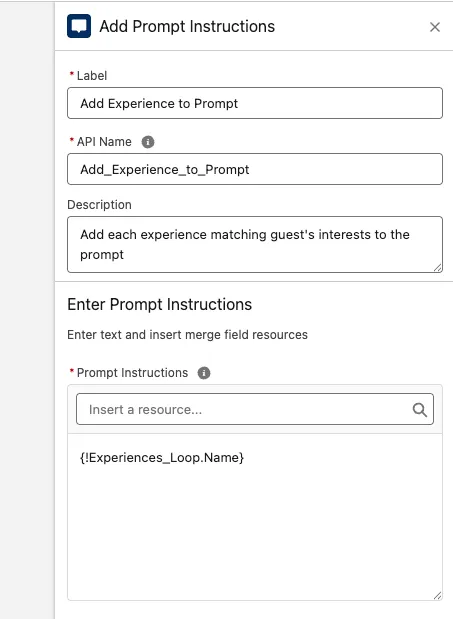
In the right panel, define the Add Prompt Instructions element as follows:
Field Value Label Add Storefront to Prompt API Name Keep default Description Add each storefront to the prompt Prompt Instructions(Resource Picker) Current Item from Loop Storefronts_Loop > Name Use the screenshot below to confirm you entered the right values.
To save and activate the flow:
Click Save and configure the flow as follows:
Field Value Flow Label Add Storefronts to Prompt Flow API Name Keep default Description Add storefront recommendations to the prompt Click Save.
Click Activate.
Your flow should follow this pattern: Get Records → Loop → Add Prompt Instructions → Save → Activate.
Step 3: Create the Sales Email template
In Setup, search for Prompt Builder, and select Prompt Builder.
Click the New Prompt Template button.
Configure the prompt template as follows:
Parameter Value Prompt Template Type Sales Email Prompt Template Name Restaurant Recommendations API Name Keep default Template Description This template drafts an email with storefront recommendations based on cuisine and city. Recipient Contact Related Object Leave blank Click Next.
Paste the following text in the Prompt Template Workspace:
txtYour name is SENDER_NAME and you work on Pronto’s Customer team. Draft a friendly email to the customer with restaurant recommendations based on their favorite cuisine and city. Requirements: - Keep it concise and helpful - Include 3–5 recommendations - Each recommendation should include the storefront name and a one-line reason it matches the customer’s preferences - If no recommendations are available, ask one clarifying question (cuisine or city) and suggest trying a different cuisine Customer name: CUSTOMER_NAME Customer city: CUSTOMER_CITY Favorite cuisine: FAVORITE_CUISINE Recommended storefronts: STOREFRONTSReplace the placeholders below with the corresponding merge fields (click the Resource search box to access merge fields).
Placeholder Merge field SENDER_NAME Sender > Full Name CUSTOMER_NAME Recipient > Full Name CUSTOMER_CITY Recipient > Mailing City (or City) FAVORITE_CUISINE Recipient > (favorite cuisine field in your org) STOREFRONTS Flow > Add Storefronts to Prompt In the Preview panel, select any Contact as the Recipient.
Click Save & Preview.
In the Resolved Prompt panel, examine the prompt that was generated. Notice that the Flow merge field in the template has been replaced with the list of storefront recommendations generated by the Flow.
In the Generated Response panel, examine the email generated by the LLM.
Click Activate when you are satisfied with your template.
Step 4: Generate emails
In your org, open a Contact record.
Click the Activity tab.
Click Email.
Click Draft with Einstein.
Click Start with pre-made instructions.
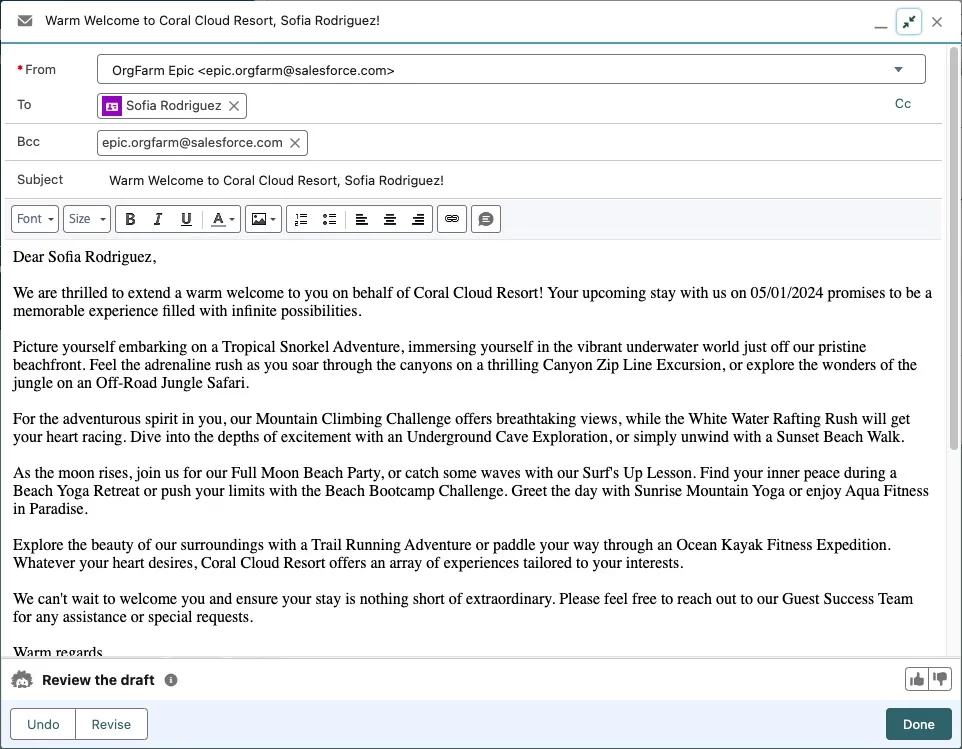
Select the Restaurant Recommendations template, and watch Einstein draft the email.
Expand the email window.
Summary
In this exercise, you created a Sales Email prompt template that drafts customer-friendly restaurant recommendations for Pronto. You grounded the template using a Flow that collects matching storefronts and passes them into the prompt at generation time.