
Appearance
Exercise 4: Ingest Orders from Amazon S3
In this exercise, you’ll ingest Pronto orders from Amazon S3 into Data 360, create a custom Orders data model object, and relate it to Individual so you can analyze orders per customer.
Step 1: Create the Order data stream
In this step, you'll create a data stream that ingests orders from Amazon S3.
Click the Data Streams tab.
Click New.
Under Other Sources, click Amazon S3, and click Next.
Configure the data stream with the following values:
Field Value Connection Pronto S3 ConnectionFile Type CSVImport from Directory Leave blank File Name pronto_order_data.csvSource Leave the default value: AwsS3_Pronto_S3_Connection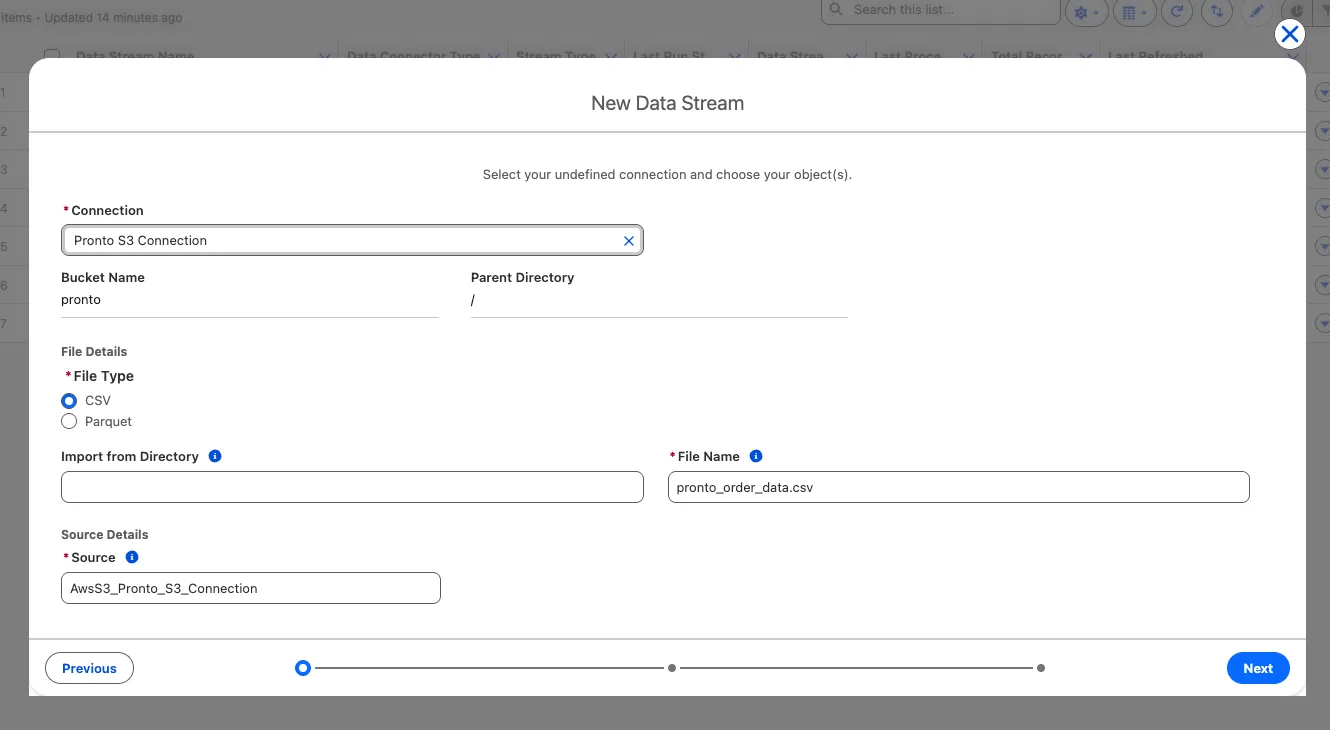
Click Next.
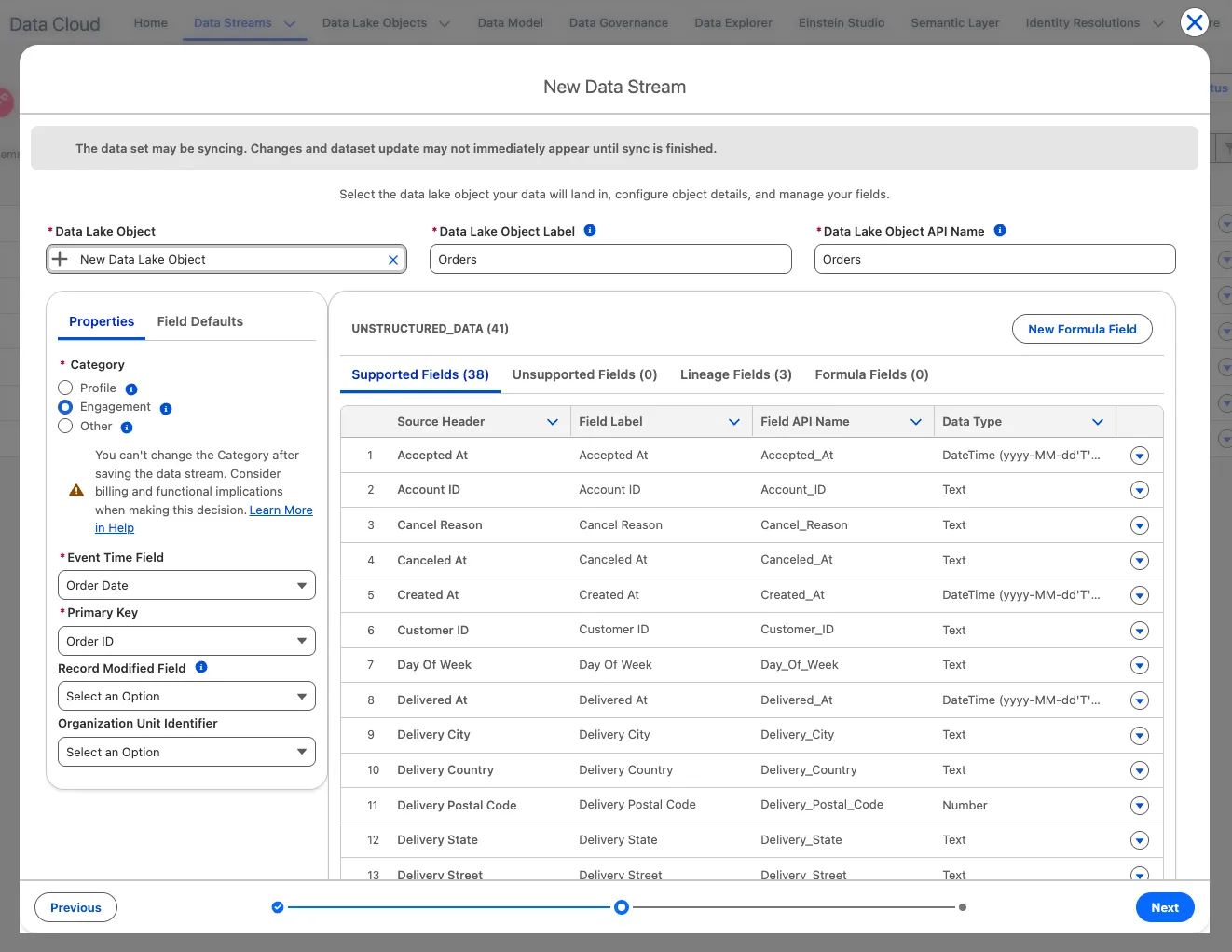
Continue configuring the data stream (keep the default values for any fields not listed below):
Set the object values:
Field Value Data Lake Object Label OrderData Lake Object API Name Keep default Set the properties:
Field Value Category EngagementEvent Time Field Order DatePrimary Key Order idUse the screenshot below to make sure you set all the right values.
Click Next.
Keep the default values, and click Deploy.
Step 2: Create a custom data model object
When you have industry-specific objects that don't have an equivalent in the Customer 360 Data Model, you can extend the Customer 360 Data Model with custom data model objects. In this step, you'll create a custom data model object to represent orders.
From the Orders data stream, click the Start button in the Data Mapping panel.
In the data model entities panel, click the Select Objects button.
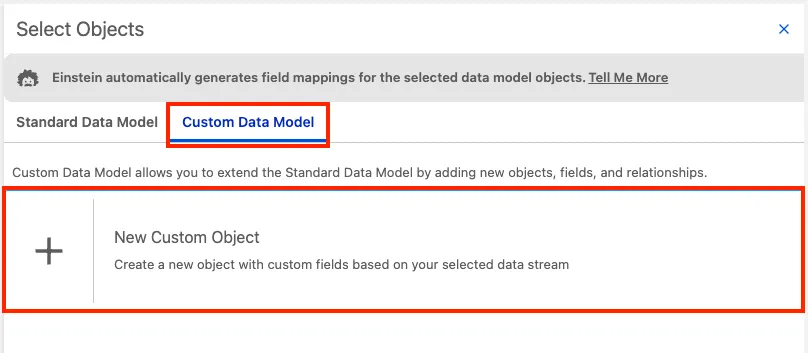
Click the Custom Data Model tab.
Click New Custom Object.
Keep the default selection and click Save.
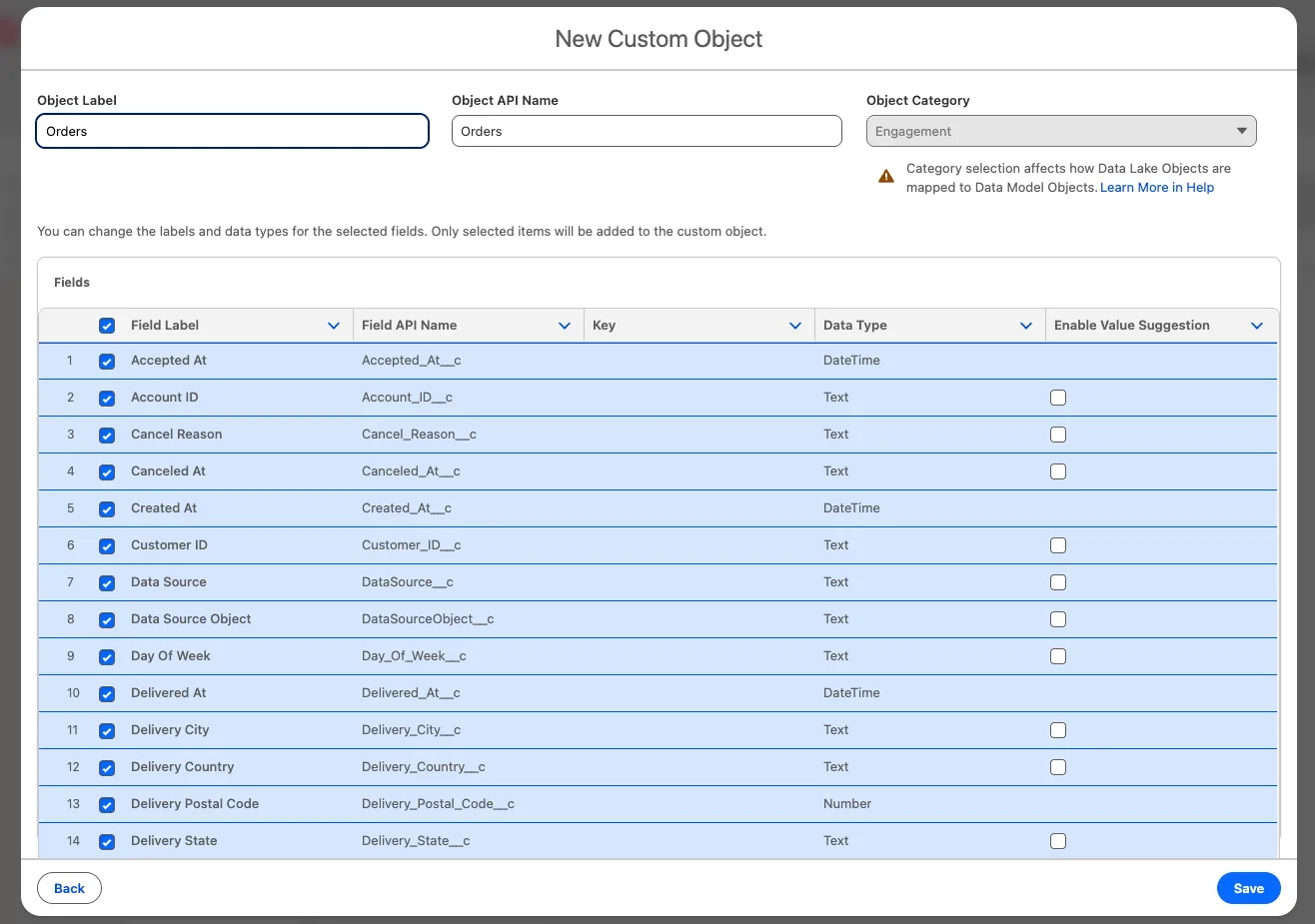
Examine the mappings. Because the Order custom data model object (DMO) was created based on your Orders data lake object (DLO), each field in the data lake object has been automatically mapped to its corresponding field in the data model object.
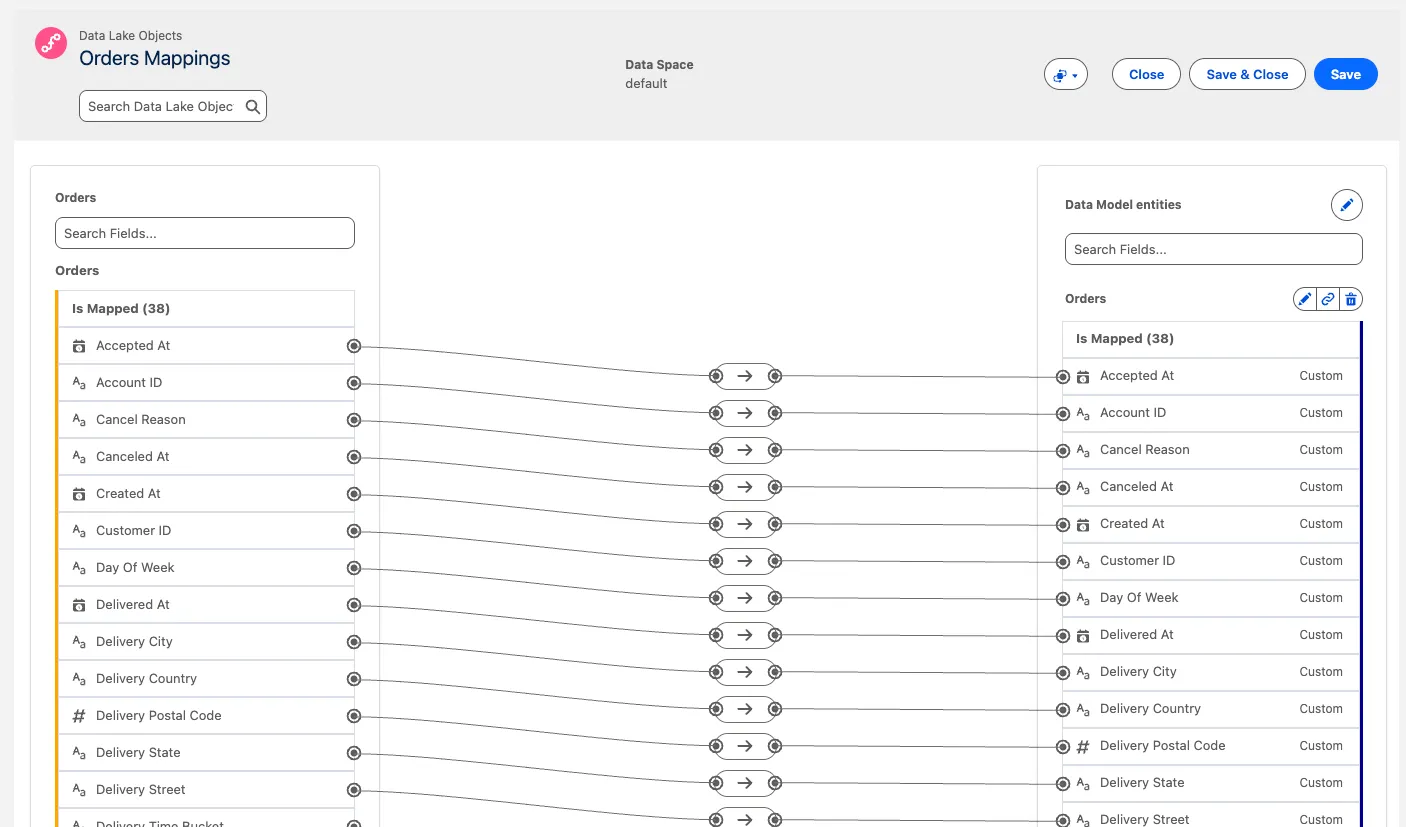
Click Save & Close.
Step 3: Create the Order-to-Individual relationship
In this step, you'll create a many-to-one relationship between the Order object and the Individual object.
Click the Data Model tab.
Click the Order data model object (DMO).
Click the Relationships tab.
Click New.
In the Edit Relationships dialog, click the + New Relationship button.
Configure your relationship as follows:
Field Value Field Customer IdCardinality N:1Related Object IndividualRelated Field Individual Id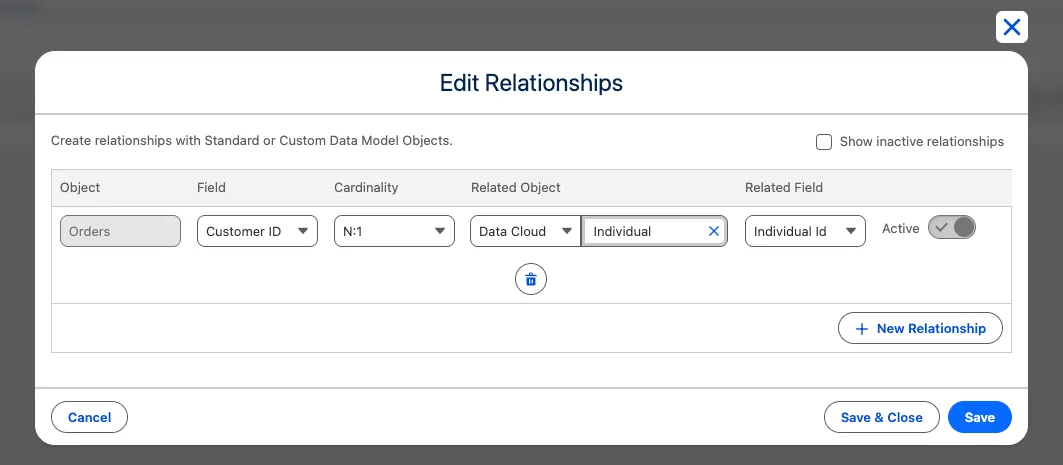
Click Save & Close.
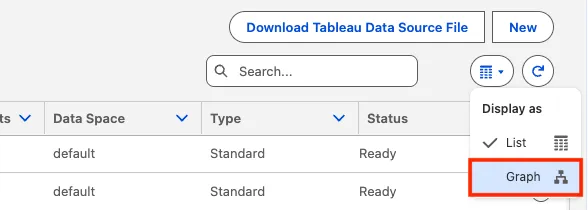
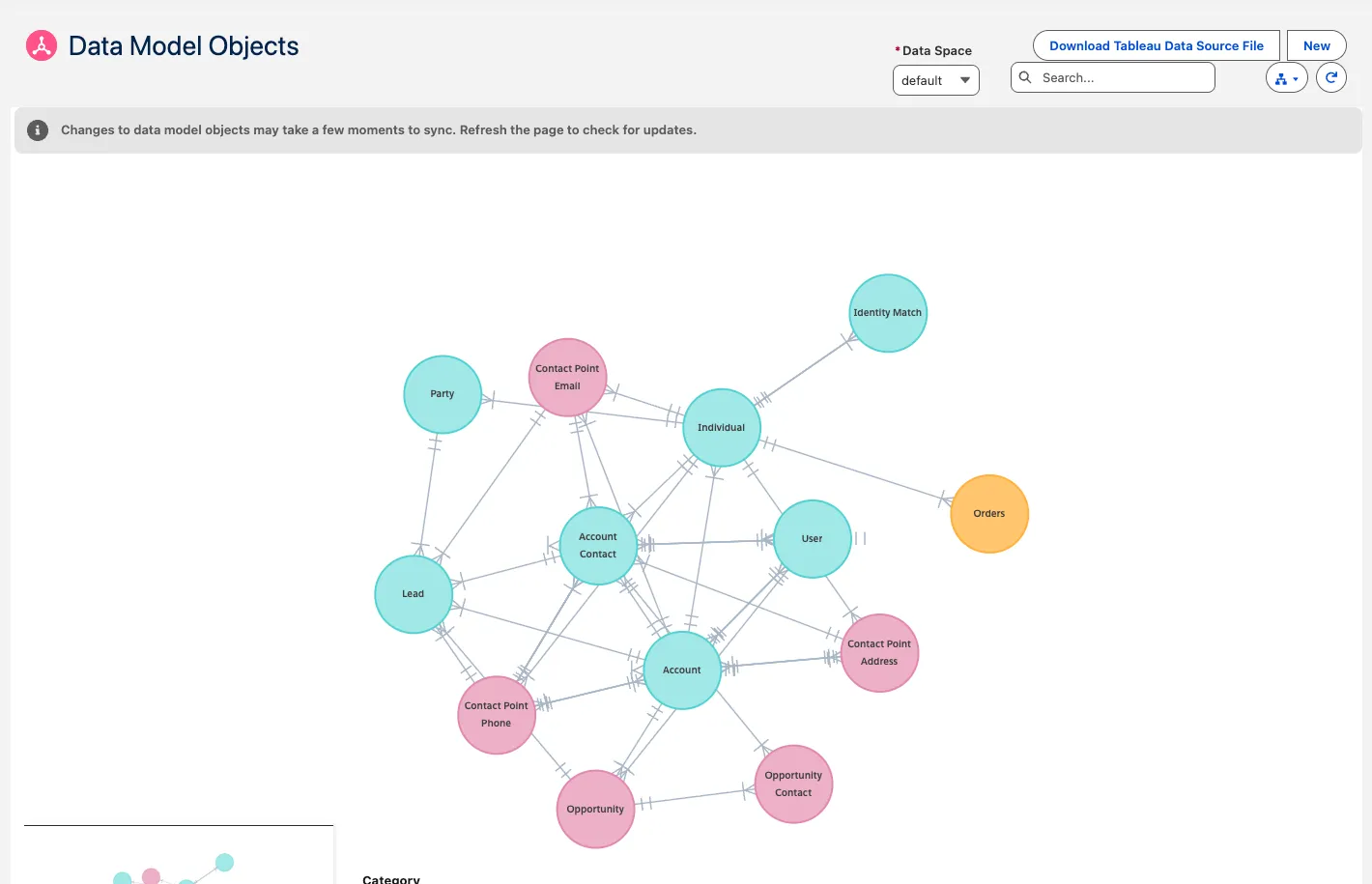
To visualize the new relationship, click the Data Model tab, click the Display as menu icon, and select Graph.
Make sure that the Order data model object (DMO) has a many-to-one relationship with the Individual DMO.
Summary
In this exercise, you created a data stream that ingests orders from Amazon S3 into an Orders data lake object (DLO). Because the Customer 360 Data Model doesn't have a standard data model object to represent orders, you created a custom Order data model object. You then defined a many-to-one relationship between the Order and the Individual data model objects.