
Appearance
Exercise 1: Ingest Unstructured Data
In this exercise, you’ll ingest Pronto support documentation (PDFs) so it can be searched and used for grounding later in the chapter.
You’ll upload these PDFs:
- pronto-customer-support-playbook.pdf
- pronto-delivery-and-order-lifecycle-faq.pdf
- pronto-promotions-membership-and-gift-certificates-terms.pdf
- pronto-merchant-and-storefront-standards.pdf
You’ll create an Einstein Data Library and a Search Retriever so later prompts and agents can retrieve relevant chunks for grounding.
Step 1: Create an Einstein Data Library
In this step, you’ll create a Data Library that will be used for retrieval and grounding.
In Setup, search for Data Libraries and select Data Libraries.
Click New Data Library.
Enter the following values:
Field Value Name Pronto Customer SupportAPI Name Keep default Description Customer support policies, FAQs, and terms for Pronto.Click Save.
For Data type, select Files.
TIP
Data Libraries support multiple source types:
- Files: Ingest documents like PDFs and index them for retrieval (best for playbooks, policies, FAQs).
- Knowledge: Index Salesforce Knowledge articles so retrieval can ground answers in your Knowledge base.
- Web: Crawl and index website pages (for example, a help center) to ground answers in published web content.
Click Upload Files and select the 4 downloaded Pronto PDFs:
pronto-customer-support-playbook.pdfpronto-delivery-and-order-lifecycle-faq.pdfpronto-promotions-membership-and-gift-certificates-terms.pdfpronto-merchant-and-storefront-standards.pdf
Click Save to confirm the file upload.
Once the files have uploaded, click Done.
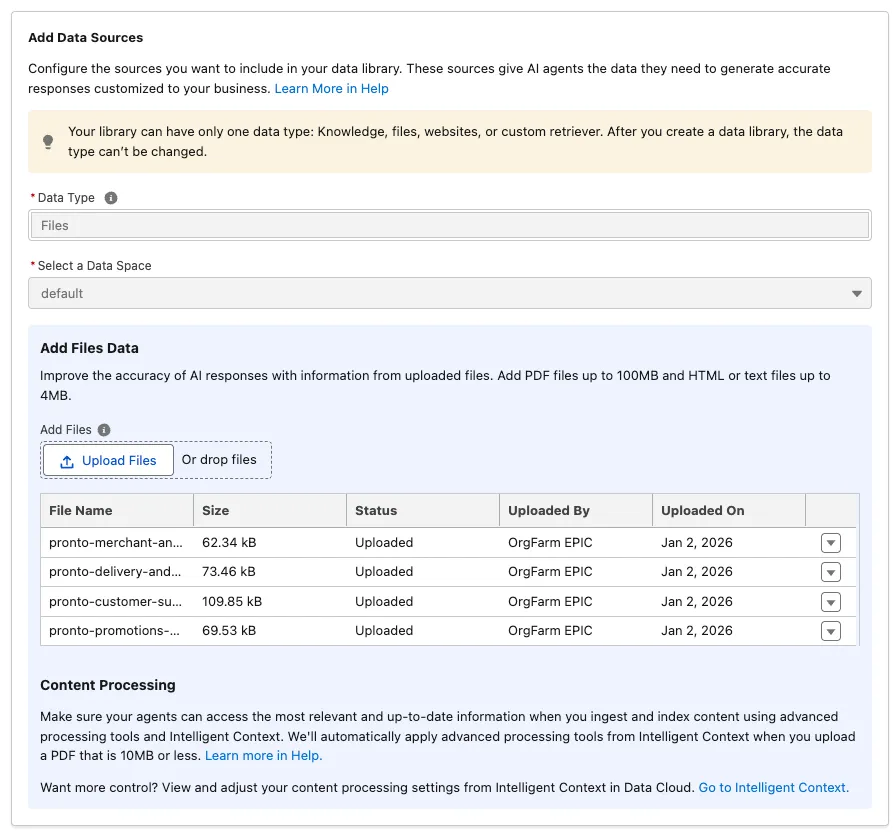
TIP
This screen can occasionally throw an error after uploading files. If it does, refresh the page to confirm whether your file upload was successful.
Step 2: Create a Search Retriever
In this step, you’ll create a retriever that can search your indexed documents and return the most relevant chunks for grounding.
Using the App Launcher, open the Agentforce Studio app.
In the left sidebar, open Data, then click Retrievers.
Click New Retriever.
Select Individual Retriever and click Next.
Select Data Cloud.
Configure the retriever as follows:
Field Value Data Space defaultData Model Object Select the Data Model Object that starts with ADL_(Pronto Customer Support)Search Index Configuration Select the Search Index Configuration that starts with ADL_Click Next.
Select All Documents and click Next.
In Fields to Return, add the following fields:
- Related Attributes > Pronto Customer Support Chunk > Chunk
- Related Attributes > Pronto Customer Support Chunk > Chunk Sequence Number
- Related Attributes > Pronto Customer Support Chunk > Citation
TIP
You can add additional fields to the retriever if desired.
Click Next.
Click Save.
Update the retriever details:
Field Value Name Pronto Customer Support RetrieverDescription Retrieves relevant chunks from Pronto Customer Support documents for grounding and answering support questions.Click Save again.
Click Activate.
Summary
In this exercise, you created an Einstein Data Library and activated a Search Retriever so later prompts and agents can retrieve relevant chunks from Pronto support PDFs for grounding.