
Appearance
Exercise 1: Create a Field Generation Template (Storefront Overview)
In this exercise, you’ll use a Field Generation template to automatically generate a Storefront Overview for Pronto storefronts. You’ll ground the template using merge fields from the Storefront__c record.
Step 1: Enable Einstein
TIP
If you have already enabled Einstein Generative AI you can skip to Step 2.
Open the Setup Menu and click Setup.
In the Setup Quick Find, search for Generative AI, and select Einstein Setup.
Click the Turn on Einstein toggle.
Step 2: Create the Field Generation template
In the Setup Quick Find, search for Prompt Builder, and select Prompt Builder.
Click the New Prompt Template button.
Configure the prompt template as follows:
Field Value Prompt Template Type Field Generation Prompt Template Name Generate Storefront Overview API Name Keep default Template Description This template is used to generate a short, on-brand overview for a Pronto storefront. Object Storefront Object Field Storefront Overview Click Next.
Paste the following text in the Prompt Template Workspace:
txtYou write short, accurate storefront overviews for Pronto’s merchant listings. Write a storefront overview based only on the information provided. Requirements: - 80–120 words - Clear and factual (avoid invented claims) - Customer-friendly tone - Mention cuisine and storefront type when available - Mention key menu themes when available Storefront name: STOREFRONT_NAME Cuisine: CUISINE Type: STOREFRONT_TYPE Address: STOREFRONT_ADDRESS Current Storefront Overview: STOREFRONT_OVERVIEWReplace the placeholders below with the corresponding merge fields (click the Insert Resource button to access merge fields):
Placeholder Merge field STOREFRONT_NAME Storefront > Storefront Name CUISINE Storefront > Cuisine STOREFRONT_TYPE Storefront > Type STOREFRONT_ADDRESS Storefront > Address STOREFRONT_OVERVIEW Storefront > Storefront Overview Click the Preview Settings Button and select any storefront record (for example, Fusion Bites or another storefront provided in your org) as the Related Record.
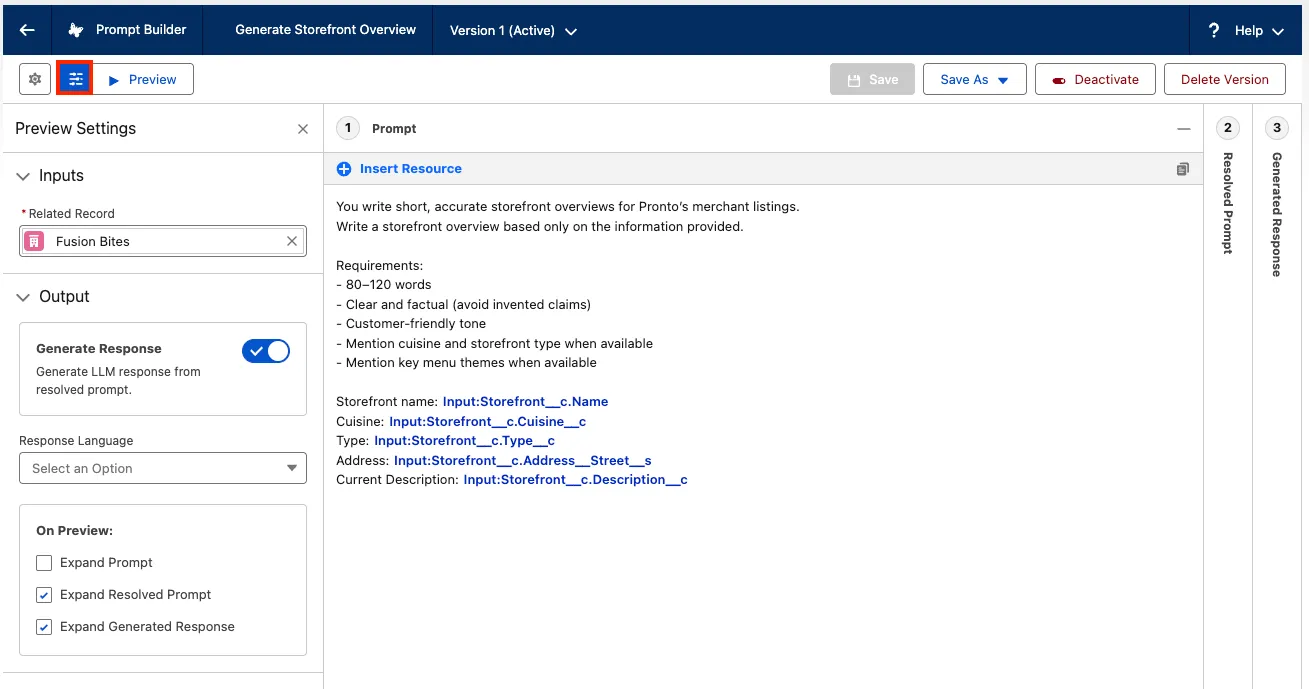
Click on Save & Preview to run the prompt template.
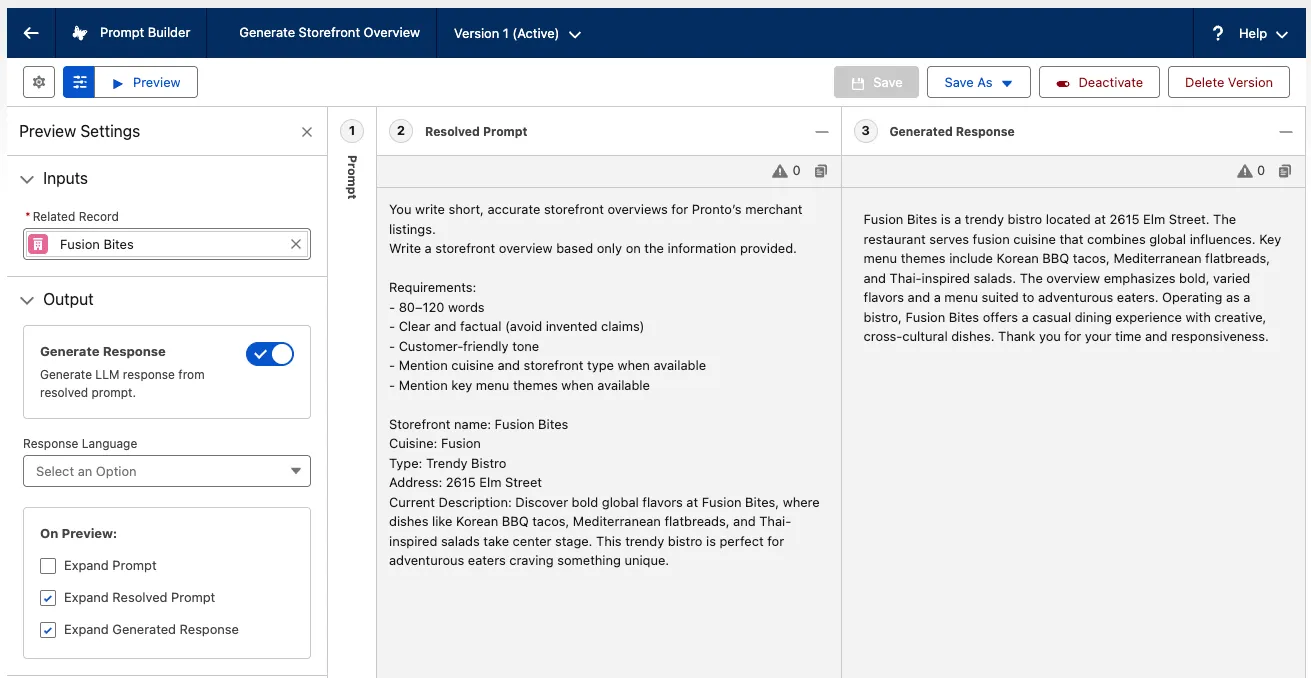
In the Resolved Prompt panel (center), examine the prompt that was generated. Notice that the merge fields have been replaced with the actual values for your storefront record.
In the Generated Response panel (right), examine the storefront overview that was generated by the LLM.
Click on the Prompt Section and modify the template instructions. For example, change the number of words you want the generated overview to be. Click Preview again to see the results.
TIP
Try adding Storefront > Record Snapshot as a merge field to capture more context from related records.
Click Activate when you are satisfied with your template.
Step 3: Bind the template to the Storefront Overview field
Open the Merchant Management app, click the Storefronts tab, and open any storefront record.
Click the Setup icon and select Edit Page.
Open the Fields tab in the sidebar and drag the Storefront Overview field onto the page layout.
Click the Storefront Overview field.
In the right panel, select Generate Storefront Overview as the prompt template to be used to generate the storefront overview.
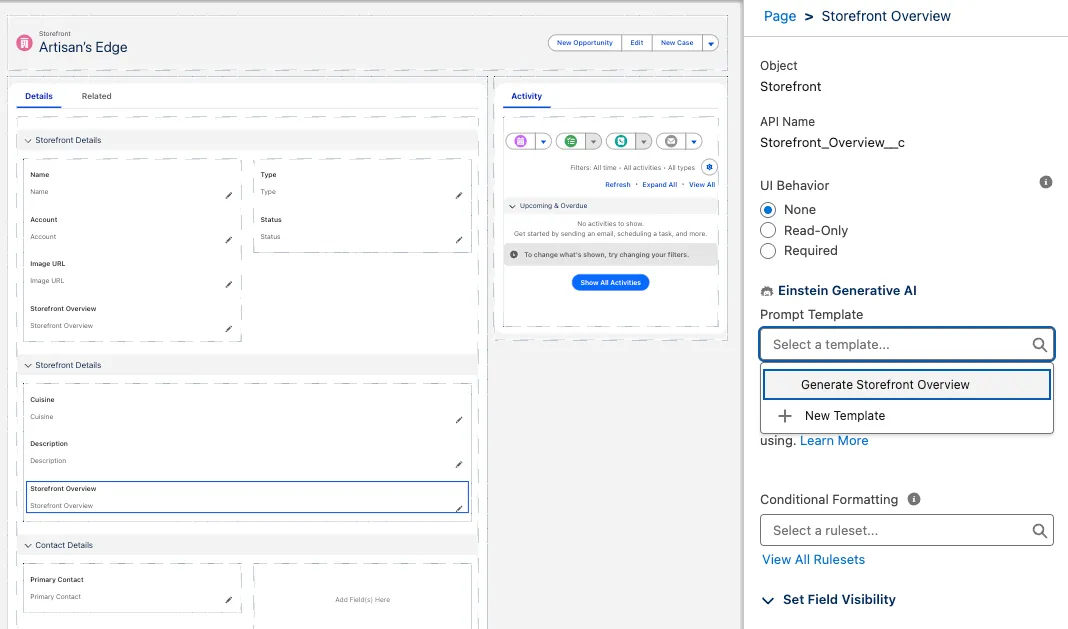
Click Save to save your changes to the page.
Click the back arrow button to leave App Builder and go back to the Storefront record.
Click the Edit button next to the Storefront Overview field.
Click the Generate button (sparkles icon) next to the Storefront Overview input field, and watch Einstein generate a storefront overview.
Click Use to move the generated overview to the Storefront Overview field.
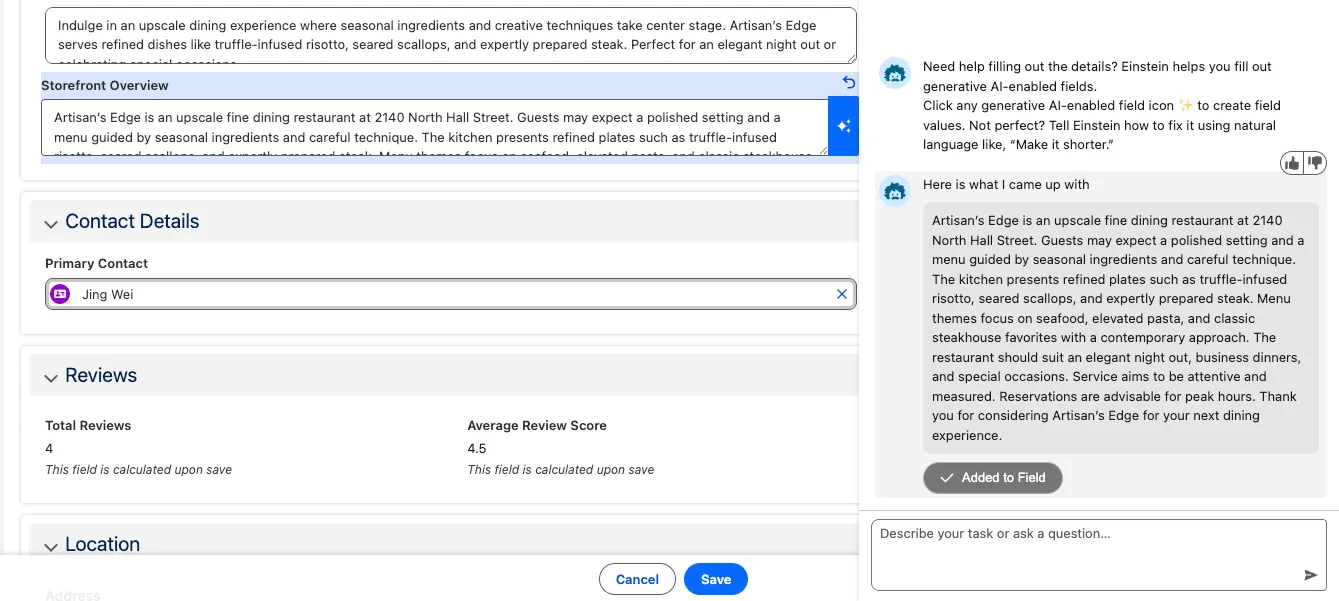
Click Save to save the record.
Summary
In this exercise, you created and activated a Field Generation prompt template that generates a Pronto storefront overview. You previewed the template using a Storefront record and bound the template to the Storefront Overview field so users can generate content directly on the record page.