
Appearance
Exercise 3: Ingest Customers from Amazon S3
In this exercise, you’ll ingest Pronto customer data from Amazon S3 into Data 360, then map it to the Customer 360 Data Model so it can be unified with CRM Contacts.
Step 1: Create the Customer data stream
In this step, you'll create a data stream that ingests Customers from Amazon S3.
Using the App Launcher, open the Data Cloud application.
Click the Data Streams tab.
Click New.
Under Other Sources, click Amazon S3, and click Next.
Configure the data stream with the following values:
Field Value Connection Pronto S3 ConnectionFile Type CSVImport from Directory Leave blank File Name pronto_customer_accounts.csvSource Leave the default value: AwsS3_Pronto_S3_Connection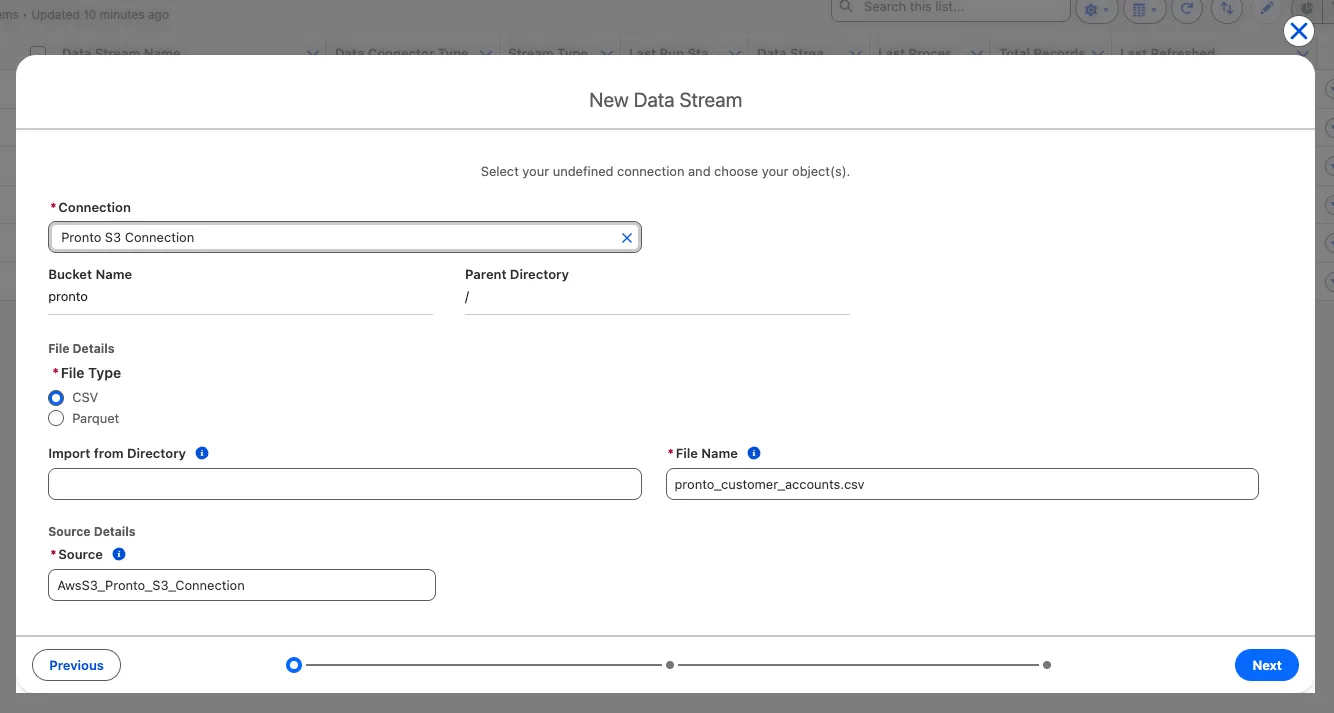
Click Next.
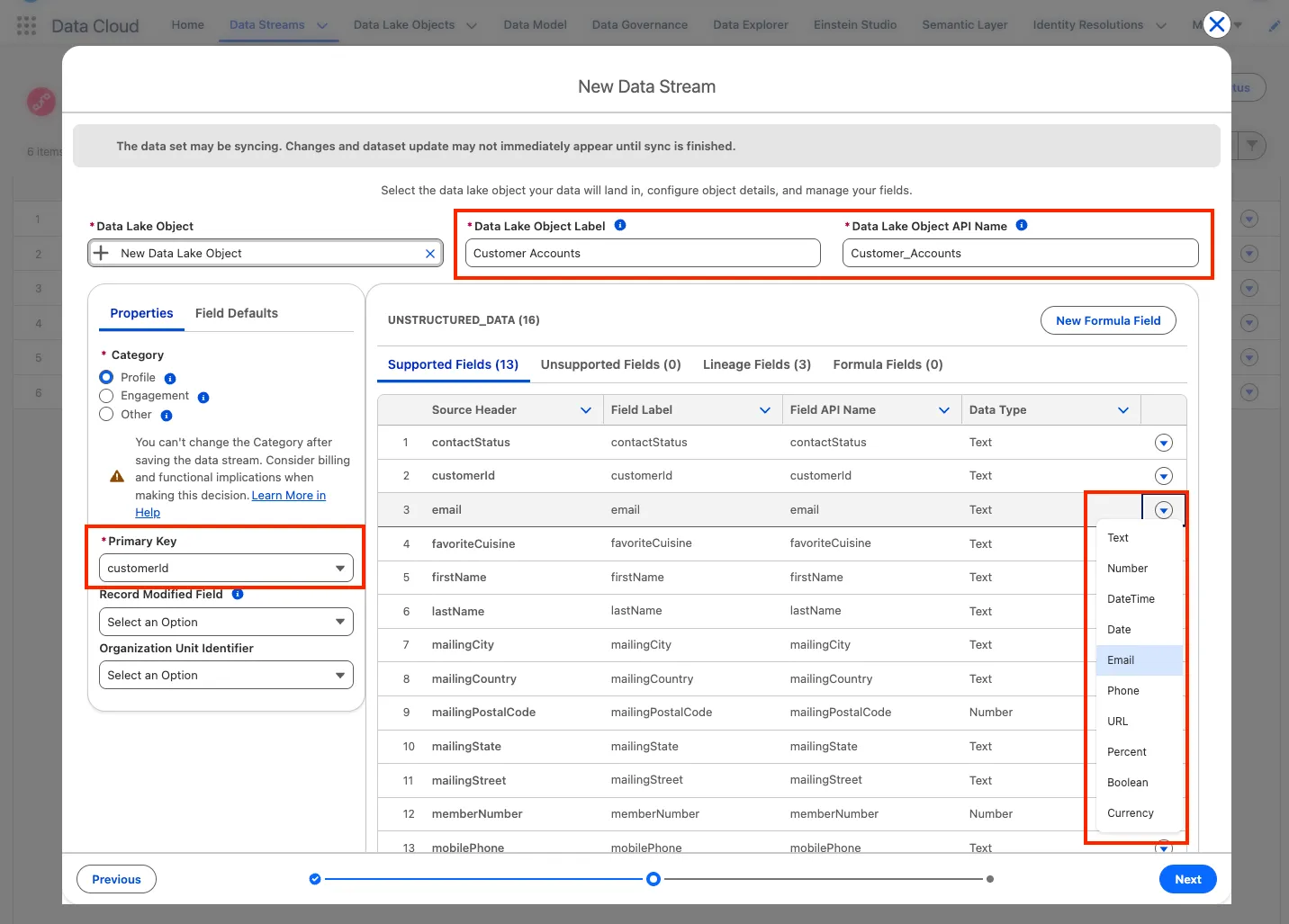
Continue configuring the data stream (keep the default values for any fields not listed below):
Set the object values:
Field Value Data Lake Object Label Customer AccountsData Lake Object API Name Keep default Set the properties:
Field Value Category ProfilePrimary Key customerIdUpdate the field types:
Field Value Email Data Type EmailMobile Phone Data Type PhoneMember Number Data Type TextUse the screenshot below to make sure you set all the right values.
Click Next.
Keep the default values, and click Deploy.
Click the Data Lake Objects tab, and notice that a Customer Accounts data lake object (DLO) has been created.
Step 2: Map the Customer Accounts data lake object
In this step, you'll map the Customer Accounts data lake object to the Customer 360 Data Model objects.
Click the Data Lake Objects tab, and click the Customer Accounts data lake object.
Click the Start button in the Data Mapping panel on the right.
In the Data Model entities panel on the right, click the Select Objects button.
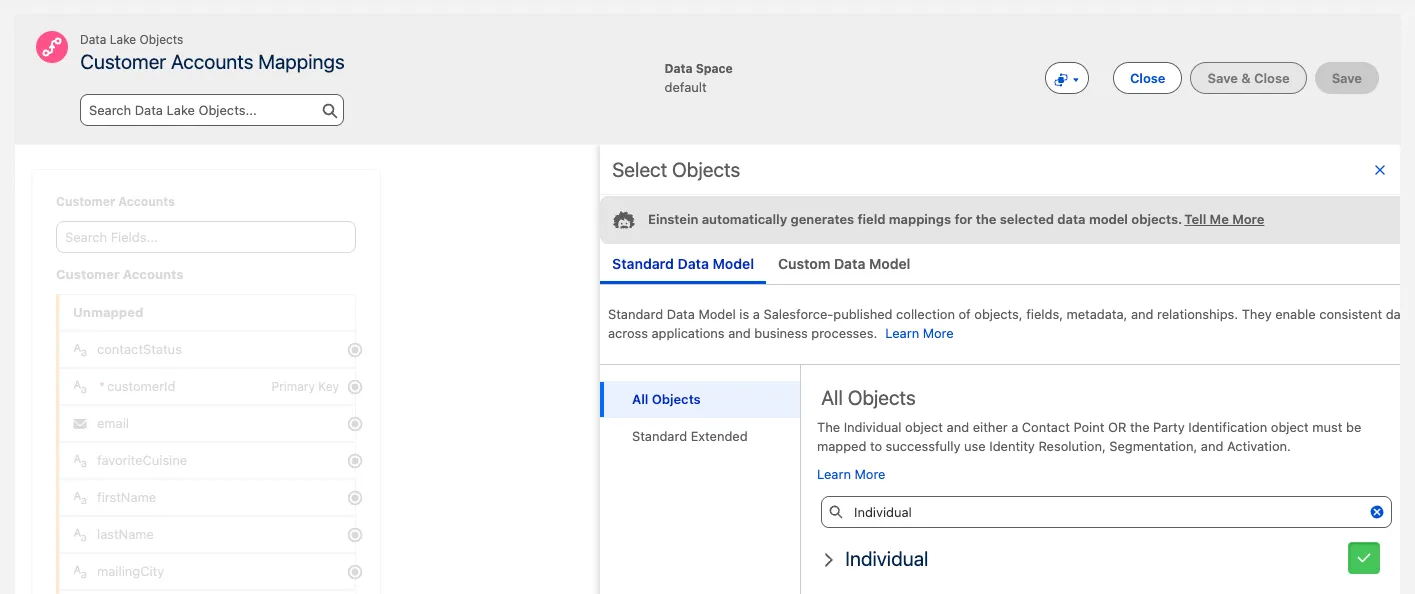
In the Select Objects panel, search for the Individual object and click the + button. If the section expands, click the + button again. Make sure that you see the green tick before moving to the next step.
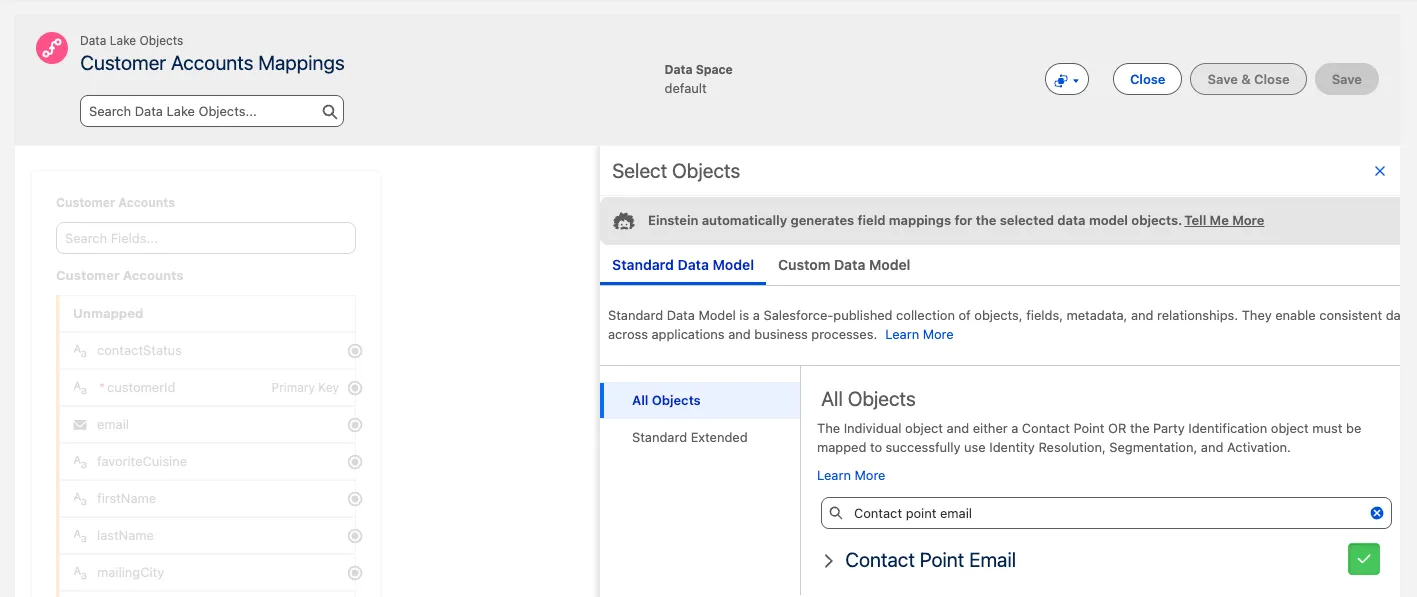
Now search for the Contact Point Email object and click the + button. If the section expands, click the + button again. Make sure that you see the green tick before moving to the next step.
Click Done.
Make sure that you see the two data model objects you selected on the right-hand side: Contact Point Email and Individual. The First Name and Last Name fields from the Customer Accounts DLO may be mapped automatically to the First Name and Last Name fields of the Individual DMO.
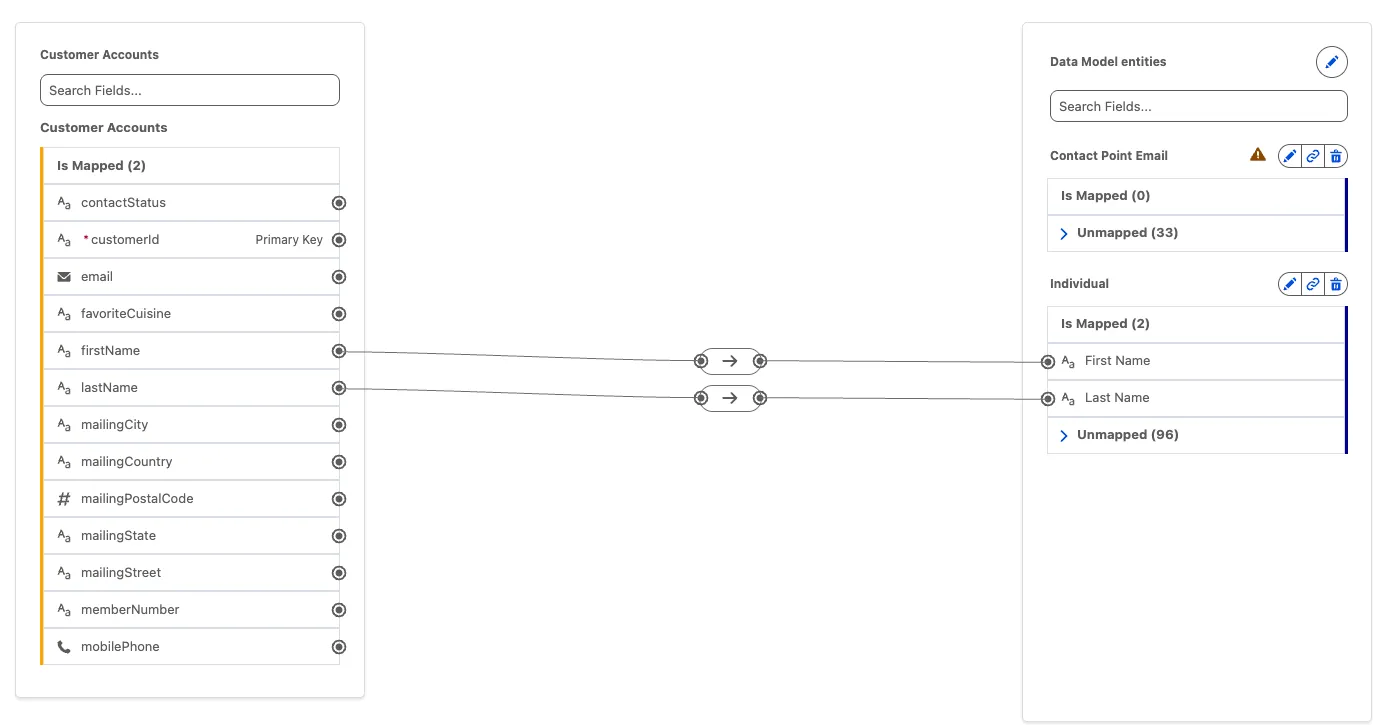
Apply the following mappings by first clicking the field that you want to map on the left, and then clicking the field that you want to map it to on the right. Some of the fields you need will be in the Unmapped section of each DMO. You can easily find a field by using the Search box to narrow down the list.
Data Lake Object DLO Field → Data Model Object DMO Field Customer Accounts Customer Id → Contact Point Email Contact Point Email Id Customer Accounts Customer Id → Contact Point Email Party Customer Accounts Email → Contact Point Email Email Address Customer Accounts Customer Id → Individual Individual Id Customer Accounts First Name → Individual First Name (mapped by default) Customer Accounts Last Name → Individual Last Name (mapped by default) Make sure that your mappings are correct using the screenshot below as a reference.
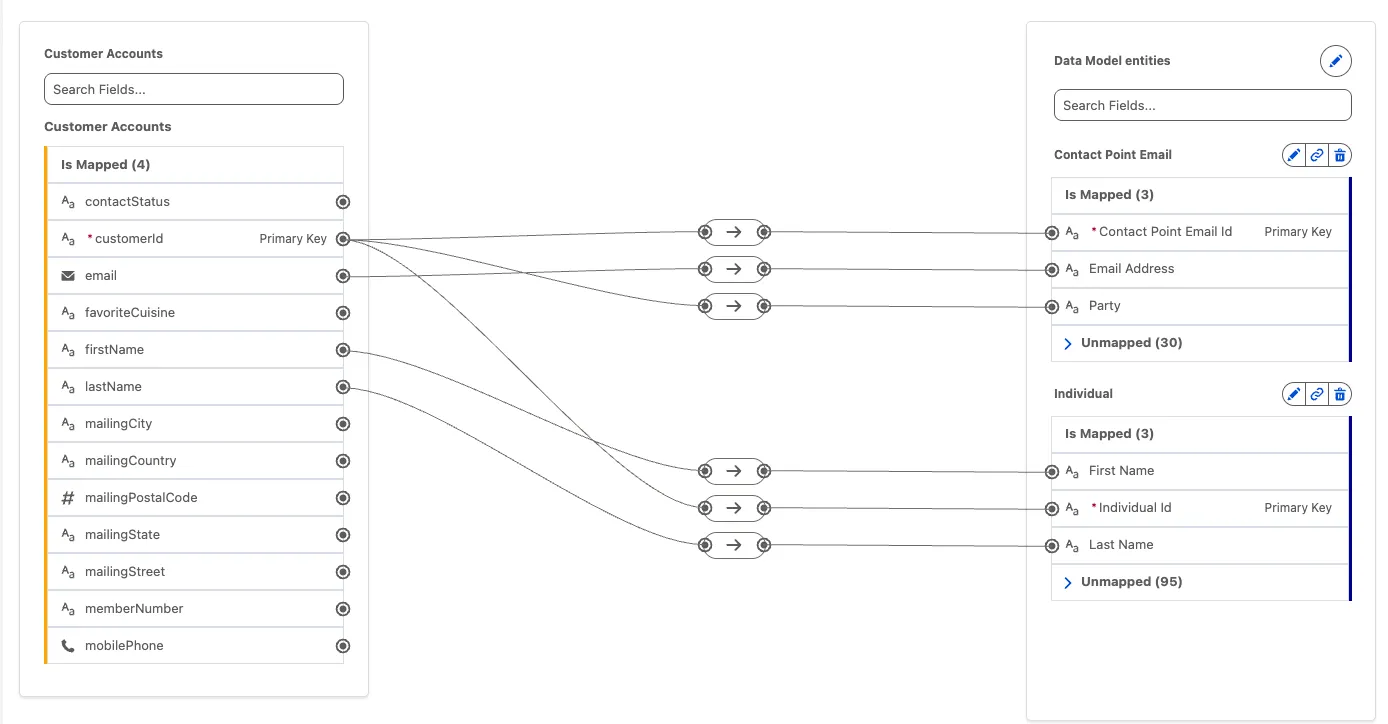
Click Save & Close. You can ignore any warnings about logging.
Summary
In this exercise, you created a data stream to ingest customer data from Amazon S3 into a Customer Accounts data lake object (DLO). You then mapped the DLO's fields to the corresponding fields in the Customer 360 Data Model.
Salesforce Contacts and S3 Customers are now available from the same data model object: Individual (and its related objects like Contact Point Email and Contact Point Phone). This will make it easy to access and act on customer data in a consistent way.