
Appearance
Exercise 4: Create a Flex Template (Personalized Storefront Recommendations)
In this exercise, you’ll create a Flex prompt template that generates personalized storefront recommendations for a Pronto customer. You’ll ground the template using data returned from an Invocable Apex method so the model can recommend the right storefronts and suggest “what to try” without making details up. Finally, you’ll invoke the template from a screen flow launched from a Contact record.
Step 1: Create the Flex template
In Setup, search for Prompt Builder, and select Prompt Builder.
Click the New Prompt Template button.
Configure the prompt template as follows:
Parameter Value Prompt Template Type Flex Prompt Template Name Generate Customer Recommendations API Name Keep default Template Description Generate personalized storefront recommendations grounded in customer preferences and storefront data. Resource Name Contact API Name contactRecord Source Type Object Object Contact Click Next.
Paste the following text in the Prompt Template Workspace:
txtYou are writing a customer-facing shortlist of Pronto storefront recommendations. Recommend up to 5 storefronts (aim for 3–5 when possible) that match the customer’s preferences and location. Requirements: - Use only the data provided (do not invent menu items, hours, promos, or ratings) - This response must be customer-facing: - Do not say “thanks for the context” or mention the input data, payload, or internal reasoning - Do not mention “review signals” or “available storefronts” - Write in a warm, concise tone that could be shown directly to the customer - Output format: - Output ONLY a bullet list (no intro, no outro, no extra paragraphs) - Each bullet must be ONE line and include: - Storefront Name - Cuisine + Type - City (and neighborhood/area if available) - Rating and total reviews if available - What to try: 1–2 items (only if menu items are provided for that storefront) - Use this structure: - Storefront Name (Cuisine • Type • City) — ⭐ {rating} ({totalReviews} reviews) — What to try: Item 1; Item 2 - If rating/total reviews are missing, omit that segment. - If menu items are missing for a storefront, omit the “What to try” segment. - Keep the tone friendly and concise Customer + storefront context:In the Preview panel, select any Contact record (for example, Alex Morgan) as the Contact resource.
Click Save & Preview.
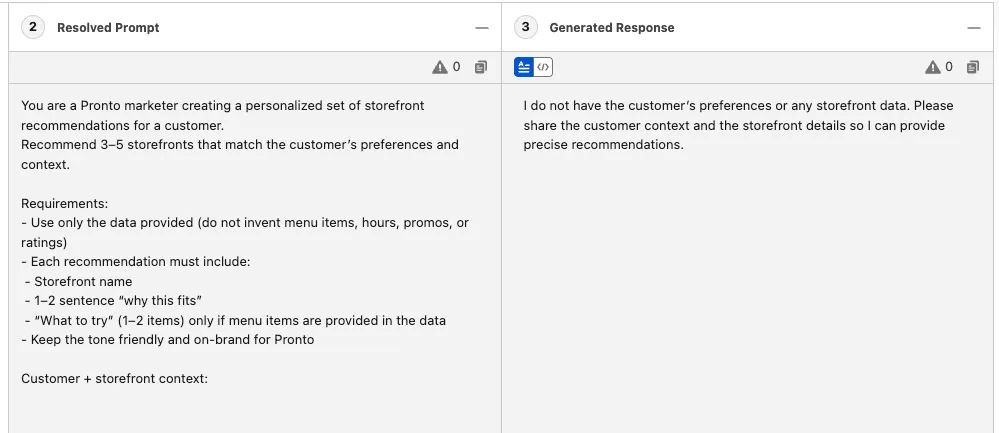
- In the Resolved Prompt panel, examine the prompt that was generated.
- In the Generated Response panel, examine the recommendations that the LLM generated.
TIP
If the LLM recommends storefronts or menu items that are not present in the prompt, that’s hallucination. To avoid it, you’ll ground the template in real Pronto data (customer preferences, storefronts, menus) returned from Invocable Apex.
Click Activate.
Step 2: Create an Apex class used to ground the template with data
In Code Builder, open the command palette (
CMD + SHIFT + Pon Mac orCTRL + SHIFT + Pon PC).Search for Apex and click Create Apex Class.
Enter CustomerRecommendationContext as the class name and accept the default directory.
Replace the default code with the following code:
apexpublic with sharing class CustomerRecommendationContext { @InvocableMethod(label='Get Customer Recommendation Context') public static List<Response> getContext(List<Request> requests) { Request input = requests[0]; Contact c = input.contactRecord; Contact customer = [ SELECT Id, FirstName, LastName, MailingCity, MailingState, Favorite_Cuisine__c, Member_Number__c, Contact_Status__c, Pronto_App_Account_Id__c FROM Contact WHERE Id = :c.Id LIMIT 1 ]; // Candidate storefronts: // 1) Prefer matching cuisine. // 2) If we don't have enough, expand to the customer's city. // 3) If we still don't have enough, fall back to top-rated overall. List<Storefront__c> candidates = new List<Storefront__c>(); if (String.isNotBlank(customer.Favorite_Cuisine__c)) { candidates = [ SELECT Id, Name, Cuisine__c, Type__c, Address__c, Status__c, Average_Review_Score__c, Total_Reviews__c FROM Storefront__c WHERE Status__c = 'Active' AND Cuisine__c = :customer.Favorite_Cuisine__c ORDER BY Average_Review_Score__c DESC, Total_Reviews__c DESC LIMIT 10 ]; } // If we have fewer than 10, broaden the list using location. if (candidates.size() < 10 && String.isNotBlank(customer.MailingCity)) { Set<Id> existing = new Set<Id>(); for (Storefront__c sf : candidates) existing.add(sf.Id); List<Storefront__c> cityAdds = [ SELECT Id, Name, Cuisine__c, Type__c, Address__c, Status__c, Average_Review_Score__c, Total_Reviews__c FROM Storefront__c WHERE Status__c = 'Active' AND Address__City__s = :customer.MailingCity AND Id NOT IN :existing ORDER BY Average_Review_Score__c DESC, Total_Reviews__c DESC LIMIT 10 ]; candidates.addAll(cityAdds); } // Final fallback: top-rated overall. if (candidates.isEmpty()) { candidates = [ SELECT Id, Name, Cuisine__c, Type__c, Address__c, Status__c, Average_Review_Score__c, Total_Reviews__c FROM Storefront__c WHERE Status__c = 'Active' ORDER BY Average_Review_Score__c DESC, Total_Reviews__c DESC LIMIT 10 ]; } Set<Id> storefrontIds = new Set<Id>(); for (Storefront__c sf : candidates) storefrontIds.add(sf.Id); List<Menu_Item__c> items = new List<Menu_Item__c>(); if (!storefrontIds.isEmpty()) { items = [ SELECT Id, Description__c, Price__c, Available__c, Menu__r.Storefront__c, Menu__r.Menu_Display_Name__c, Menu_Category__r.Name FROM Menu_Item__c WHERE Menu__r.Storefront__c IN :storefrontIds ORDER BY Available__c DESC, CreatedDate DESC LIMIT 50 ]; } Map<String, Object> payload = new Map<String, Object>{ 'customer' => customer, 'storefrontCandidates' => candidates, 'menuItems' => items }; Response res = new Response(); res.Prompt = JSON.serialize(payload); return new List<Response>{ res }; } public class Request { @InvocableVariable(required=true) public Contact contactRecord; } public class Response { @InvocableVariable public String Prompt; } }Note that the
getContext()method is defined as an@InvocableMethodso it can be invoked by your template.Save the file (
CMD + Son Mac orCTRL + Son PC).In the file explorer (left sidebar), click the CustomerRecommendationContext.cls-meta.xml file.
Make sure the class API version is at least 60.0. The file should now look like this:
xml<?xml version="1.0" encoding="UTF-8"?> <ApexClass xmlns="http://soap.sforce.com/2006/04/metadata"> <apiVersion>60.0</apiVersion> <status>Active</status> </ApexClass>Save the file.
Right-click anywhere in the code and select SFDX: Deploy This Source to Org.
Step 3: Ground the template with Apex data
In Setup, open Prompt Builder.
Open the Generate Customer Recommendations template.
On the line after "Customer + storefront context:", use the Insert Resource search box and select: Apex > CustomerRecommendationContext.
Click Save As > Save as New Version.
In the Preview panel, select a Contact record as the Contact resource.
Click Preview.
In the Resolved Prompt panel, examine the prompt that was generated. Notice that the Apex resource has been replaced with customer details, candidate storefronts, and menu items generated by the Invocable Apex method.
In the Generated Response panel, examine the recommendations generated by the LLM. Now that you grounded the prompt in real data, the output should reference storefronts and menu items from the payload instead of making them up.
Step 4: Leverage the reasoning capabilities of large language models
Large language models (LLMs) can not only generate content, but they can also reason and orchestrate tasks. In this step, you’ll modify the prompt to ask the LLM to choose recommendations that are diverse, non-duplicative, and grounded.
Modify the prompt template as follows:
txtYou are writing a customer-facing shortlist of Pronto storefront recommendations. Recommend up to 5 storefronts (aim for 3–5 when possible) that match the customer’s preferences and location. Requirements: - Use only the data provided (do not invent menu items, hours, promos, or ratings) - This response must be customer-facing: - Do not say “thanks for the context” or mention the input data, payload, or internal reasoning - Do not mention “review signals” or “available storefronts” - Write in a warm, concise tone that could be shown directly to the customer - Output format: - Output ONLY a bullet list (no intro, no outro, no extra paragraphs) - Each bullet must be ONE line and include: - Storefront Name - Cuisine + Type - City (and neighborhood/area if available) - Rating and total reviews if available - What to try: 1–2 items (only if menu items are provided for that storefront) - Use this structure: - Storefront Name (Cuisine • Type • City) — ⭐ {rating} ({totalReviews} reviews) — What to try: Item 1; Item 2 - If rating/total reviews are missing, omit that segment. - If menu items are missing for a storefront, omit the “What to try” segment. - Choose recommendations that are diverse (avoid recommending 5 similar storefronts) - Prefer storefronts with stronger review context when it’s available in the data (rating + total reviews) - If fewer than 3 storefrontCandidates are provided, recommend what’s available (up to 5). Do not ask follow-up questions. Customer + storefront context: {!$Apex:CustomerRecommendationContext.Prompt}Click Save & Preview.
If the output includes invented menu items or unsupported claims, adjust the prompt instructions and click Save & Preview again.
Click Activate when you are satisfied with your template.
Step 5: Use the prompt in a screen flow
In Setup, search for Flow and select Flows.
Open the prebuilt flow named Personalized Recommendations.
In the flow, select the Get Contact element (or create it if it doesn’t exist) to retrieve the current
Contactrecord using the record Id from the flow.Mouse over the connector under Get Contact, click +, search for Actions, and select Generate Customer Recommendations.
Configure the action as follows:
Field Value Label Invoke Prompt API Name Keep default Description Invoke the Generate Customer Recommendations Flex template Contact Select the Contact record from your Get Records element (remove any trailing dot that is automatically added) Add a Display Text component to the screen and set it to the output:
- Outputs from Invoke Prompt > promptResponse
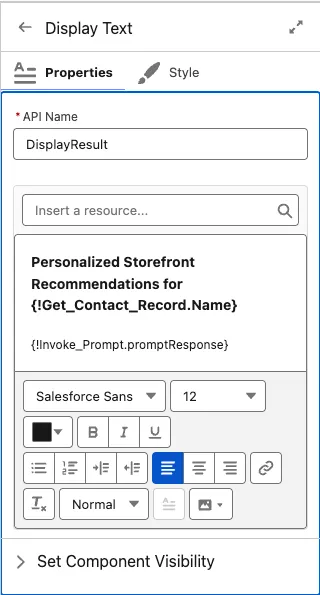
Click Done.
Click Save As > A New Version. Click Save.
Click Activate.
Open a Contact record and run your flow (for example via a quick action).
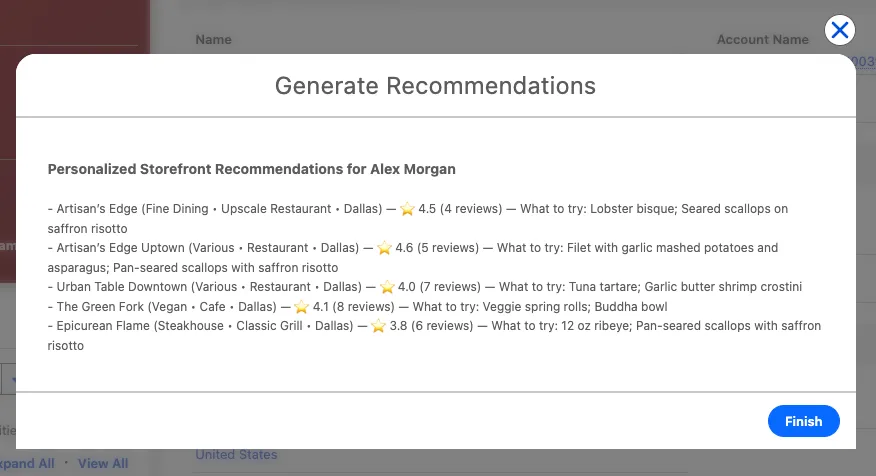
The screen flow invokes the Generate Customer Recommendations Flex template you created earlier in this exercise. This is a great example showing how Flex templates can be used to bring grounded generative AI into any part of your Pronto applications.
Summary
In this exercise, you created and activated a Flex prompt template that generates personalized storefront recommendations. You grounded the prompt using Invocable Apex (customer + storefront + menu context) and invoked the template from the prebuilt Personalized Recommendations flow.