
Appearance
Exercise 8 (Optional): Access Calculated Insights in Salesforce
In this exercise, you'll use CRM Enrichment to copy values from Data 360 to Salesforce. You’ll copy the calculated insights you created in the previous exercise (Lifetime Orders and Lifetime Value) to fields on the Contact object.
Step 1: Configure permissions
In this step, you’ll set up the permissions needed to access the default data space (where your calculated insights reside) and copy values into the Contact object.
Modify the Data Cloud Admin permission set
To add permissions to access the default Data Space:
Open the Setup Menu and click Setup.
In the Quick Find, search for Permission Sets and click Permission Sets.
Click the Data Cloud Architect permission set.
In the Apps section, click Data Cloud Data Space Management.
In the Data Spaces panel, click Edit.
Check the Enabled checkbox for the default data space and click Save.
Click OK in the confirmation dialog.
Modify the Customer 360 Data Platform Integration permission set
To add permissions required for Data Cloud to copy values into Contact object fields:
In Permission Sets, select the Customer 360 Data Platform Integration permission set.
In the Apps section, click Object Settings.
Click Contacts.
Click the Edit button.
Check the Modify All checkbox. This will automatically check the Delete checkbox as well.
Scroll down the page into the Field Permissions section and check the Edit Access checkbox for the Lifetime_Orders__c and Lifetime_Value__c fields.
Scroll back up to the top and click Save.
Step 2: Verify the status of the calculated insights job
Before moving forward with this exercise, make sure that the calculated insights job (Exercise 7) has completed. To check the status of your calculated insights job:
In the Data Cloud app, click the Calculated Insights tab.
Check the value of the Last Run column for the Order Profile by Customer insight. The value will be Success if the job completed successfully.
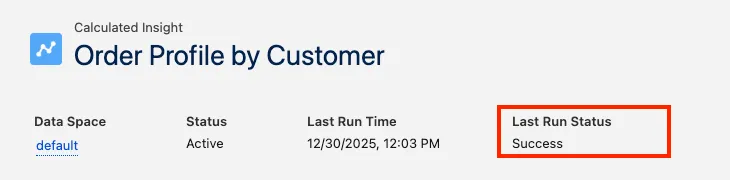
Step 3: Create a Data Cloud Copy Field enrichment in Salesforce
In this step, you'll leverage the Data Cloud Copy Fields feature to copy calculated insights into Contact object fields.
Using the App Launcher, open the Customer Support application.
Navigate to the Alex Morgan Contact record page.
Open the Setup Menu and click Edit Object.
Click Data Cloud Copy Field in the left sidebar.
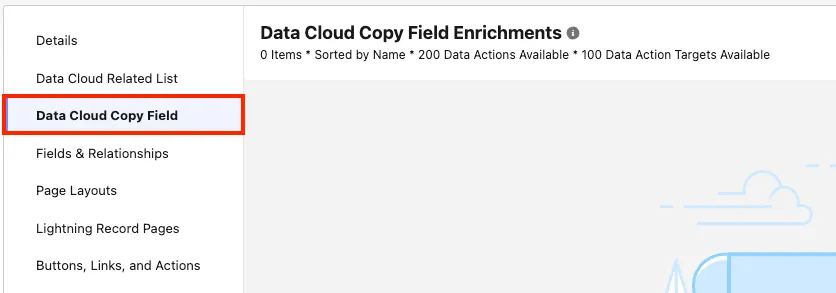
Click New.
In the Data Cloud Object field, select the Order Profile by Customer Calculated Insight, and click Next.
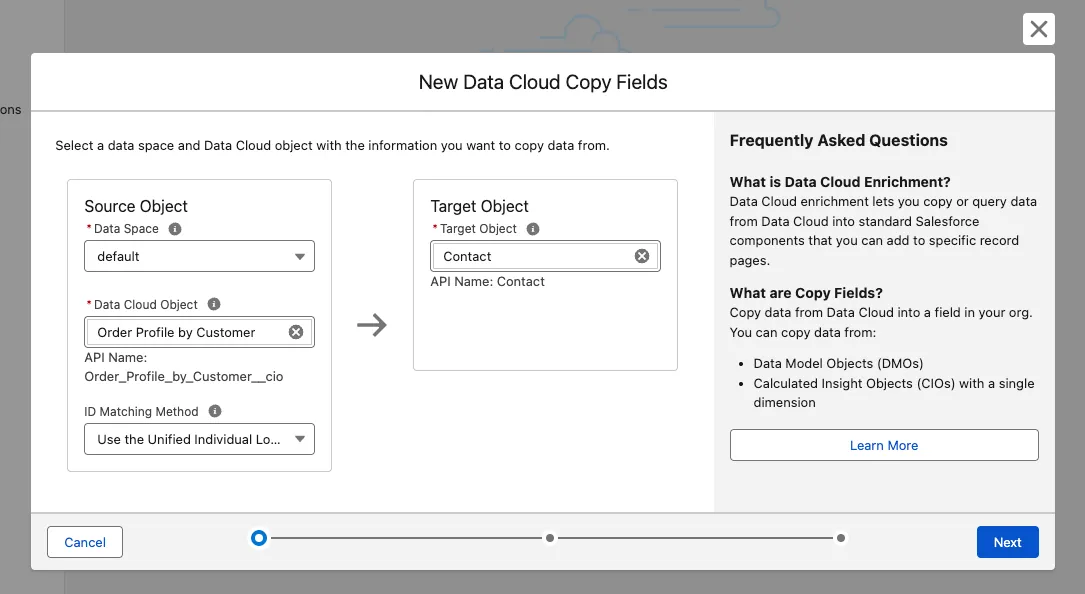
Select the Lifetime Orders and Lifetime Value fields, and click Next.
Change the Label to Order Profile by Customer (remove "default"), keep the default API name, and click Next.
In the Field Mapping tab, map Data Cloud measures to Contact fields as follows:
Data Cloud: Order Profile by Customer → Contact Lifetime Orders → Lifetime Orders Lifetime Value → Lifetime Value 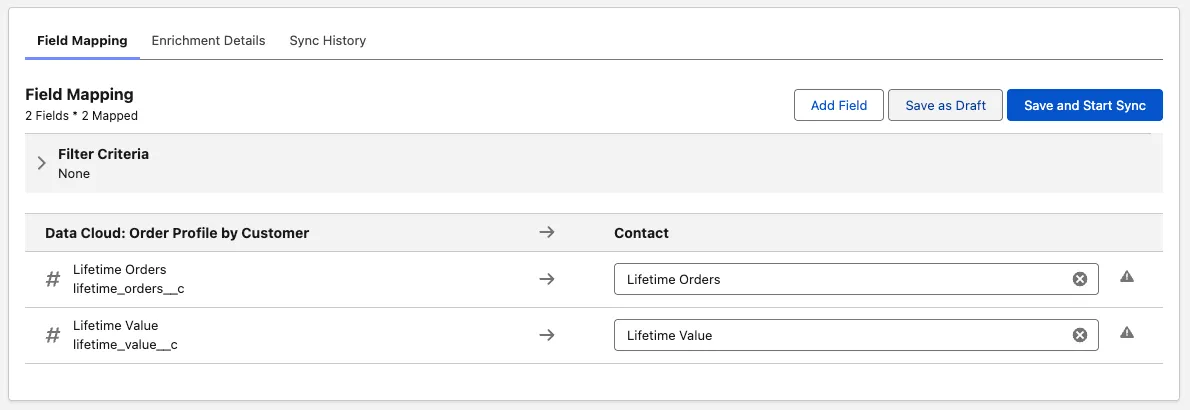
Click Save and Start Sync.
In the dialog box, click Save and Start Sync.
TIP
This process can take up to 15 minutes to complete.
After a few minutes, click the Sync History tab in the Order Profile by Customer Data Cloud Copy Field enrichment. Verify the Sync Status is Complete. If not, wait until it completes.
Step 4: Check out the Data Cloud calculated insights on the Contact page
Navigate to the Contact record page for Alex Morgan.
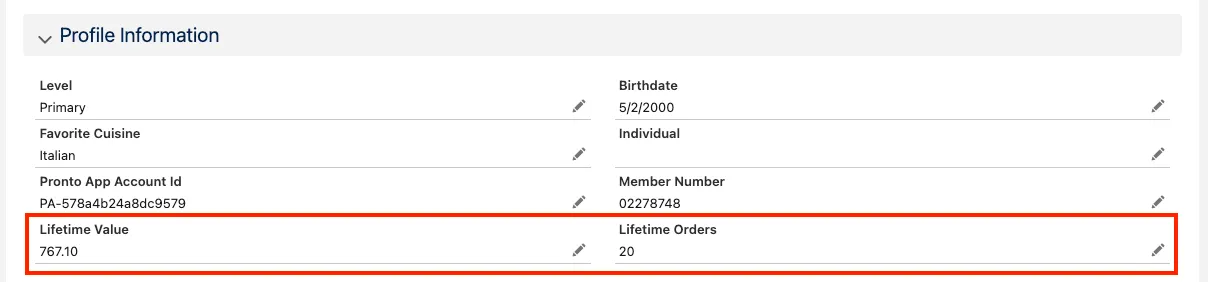
On the Details tab, scroll down to view the new values for Lifetime Value and Lifetime Orders.
Summary
In this exercise, you used CRM enrichment to copy calculated insights from Data Cloud to fields on the Salesforce Contact object.