
Appearance
Exercise 11 (Optional): Access Data 360 with SOQL
In this exercise, you’ll access Data 360 data using SOQL. You’ll query unified Individual data, and (optionally) pull recent order context for a customer.
Step 1: Set up Web Console
Navigate to Setup.
In the Setup quick find, search for Web Console.
Enable Web Console.
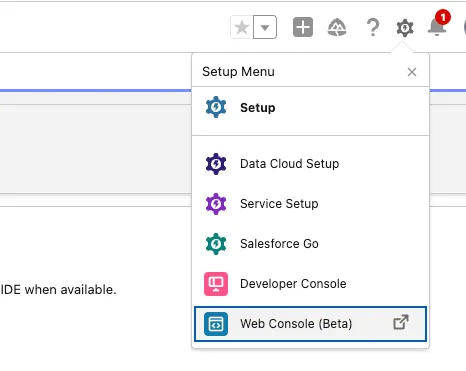
Click on the Setup Menu, then click Web Console (Beta).
Step 2: Query Data 360 with SOQL
In Web Console, right-click the scripts>soql folder and create a New File called individual.soql.
In the individual.soql editor window, create a query to return Individual Id, First Name, Last Name, Birth Date, and Data Source Id, where Last Name is equal to Morgan.
sqlSELECT ssot__Id__c, ssot__FirstName__c, ssot__LastName__c, ssot__BirthDate__c, ssot__DataSourceId__c FROM ssot__Individual__dlm WHERE ssot__LastName__c = 'Morgan' LIMIT 100Highlight the query, then open the command palette (Cmd+Shift+P Mac or Ctrl+Shift+P Windows) and select SFDX: Execute SOQL Query with Currently Selected Text.
You should now see a single record: the consolidated profile created by the identity resolution process.
Modify the query as follows:
sqlSELECT ssot__Id__c, ssot__FirstName__c, ssot__LastName__c, ssot__BirthDate__c FROM UnifiedssotIndividualCcid__dlm WHERE ssot__LastName__c = 'Morgan' LIMIT 100Run the query again.
You should now see a single record: the consolidated profile created by the identity resolution process.
(Optional) Create a second SOQL file called orders.soql and query recent orders for an individual. For example:
sqlSELECT ssot__Id__c, Orders__dlm.Order_id__c, Orders__dlm.Order_Date__c FROM ssot__Individual__dlm WHERE ssot__LastName__c = 'Morgan' LIMIT 10Run the query again.
Summary
In this exercise, you used SOQL to query Data 360 data model objects in Web Console, including unified Individual data and related order context.