
Appearance
Exercise 9 (Optional): Analyze Data Cloud Data in Salesforce Reports
In this exercise, you’ll use Data 360 data inside standard Salesforce reports.
Step 1: Create a Data 360 report
Using the App Launcher, open the Customer Support application.
Click the Reports tab.
Click New Report.
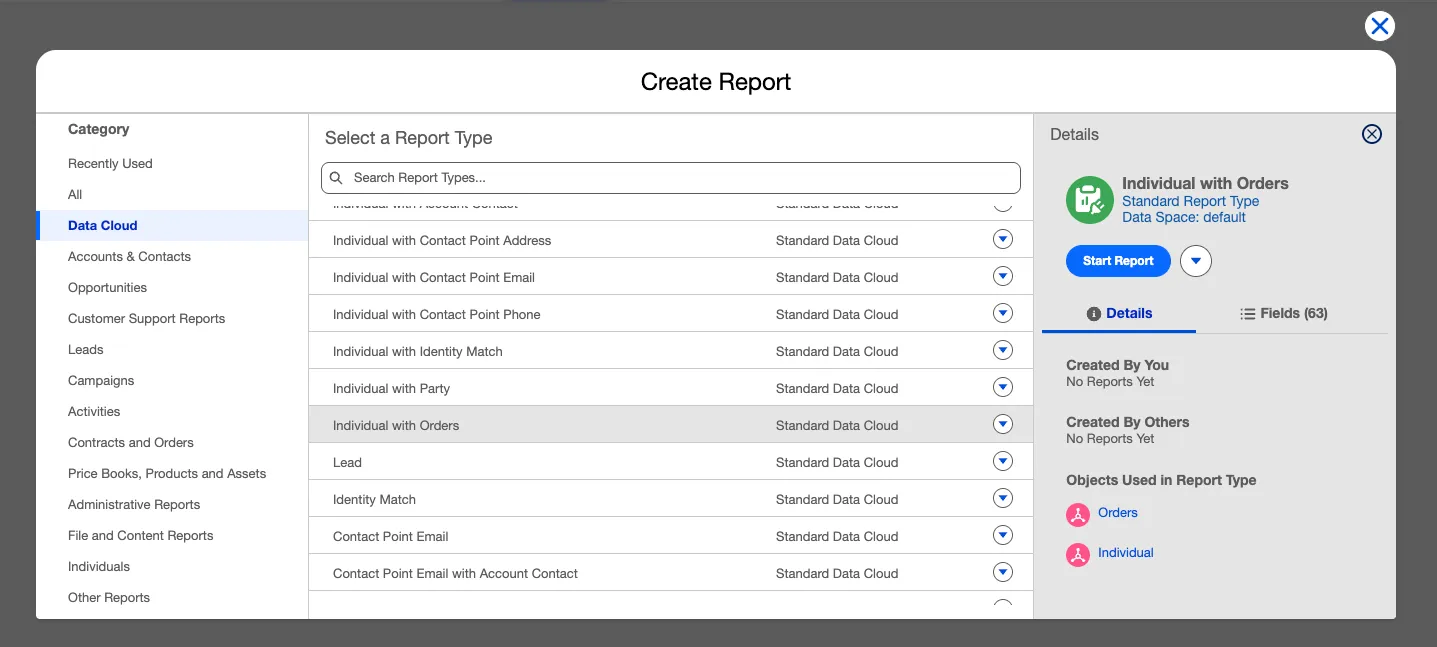
Select the Data Cloud Category.
Select the Customer with Orders report type.
Click Start Report.
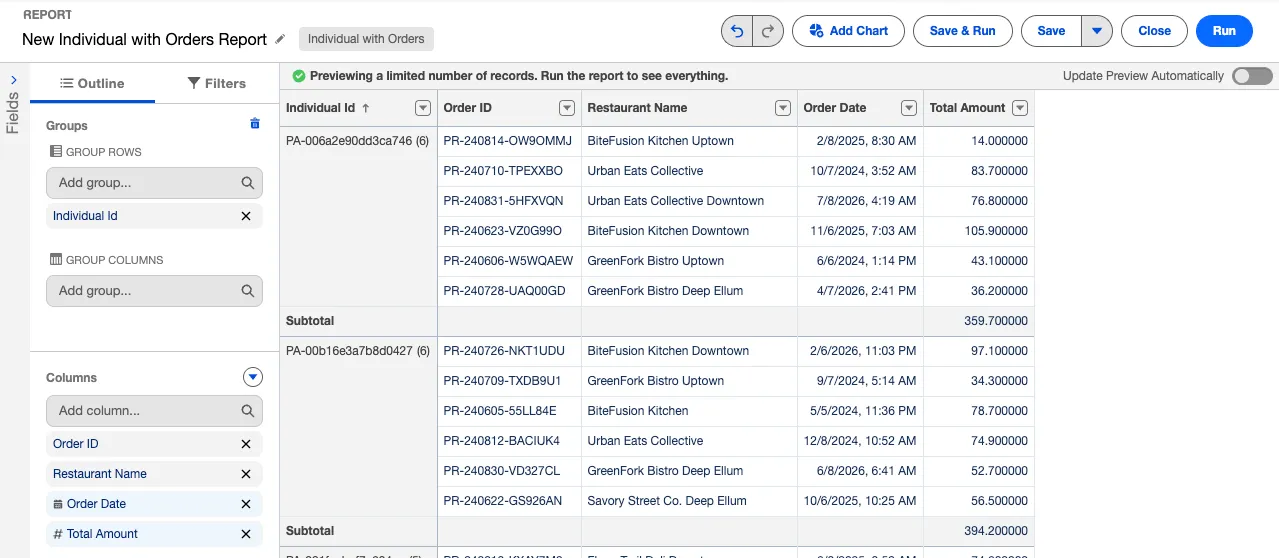
In the Columns section, add fields that help you analyze order activity, such as:
- Order Id
- Restaurant Name
- Order Date
- Order Total
In the Group Rows section, group by Individual Id.
Click Refresh to preview the report.
Step 2: Create a row-level formula
Open the Columns menu and click Add Row-Level Formula.
Configure the formula as follows:
Field Value Column Name Days Since Order Description Days since the order date Formula Output Type Number Decimal Points 0 Add the following formula into the Formula Builder:
textTODAY() - DATEVALUE(Orders__dlm.Order_Date__c)Click Apply.

Click Refresh to preview the report.
Click Save & Run.
Configure the report as follows:
Field Value Report Name Individual with Orders Report Report Unique Name Individual_with_Orders_Report Description View order activity by Individual Id using Data Cloud data Folder Private Reports Click Save.
That’s it, you have now used Data Cloud data inside of Report Builder!
Summary
In this exercise, you created a report that analyzes Data 360 order data in Salesforce, including a row-level formula to compute days since an order date.