


Health Cloud Administration
 j
jCustomize the Patient Navigation Component
|
Available in: Lightning Experience Available in: Enterprise and Unlimited Editions with Health Cloud |
| User Permissions Needed | |
|---|---|
| To customize the patient card navigation menu: | Customize Application |
The Patient Navigation component helps care coordinators jump to the pages they need without leaving the patient console. Customize the tab navigation list with the items your care coordinators most frequently use. Add a navigation item to one of the default menu categories, or add a category with new child navigation options.
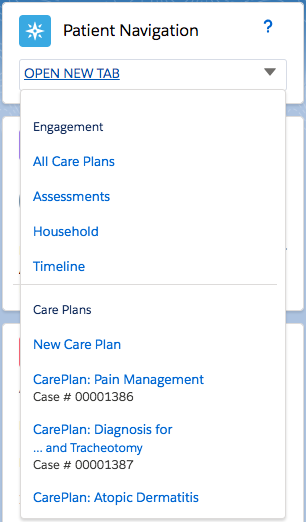
You can also configure the tab navigation menu to open standard and custom pages or URLs as either primary or secondary tabs. Clicking an item in the menu opens a new tab or subtab related to that patient’s records.
- From Setup, in the Quick Find box, enter Custom Settings, then select Custom Settings.
- In the list of custom settings, click Manage next to the CardView Dropdown custom setting.
-
Click New and complete these fields:
Field Details Name Name of the parent category that contains child menu navigation items. The category name is just a heading and isn’t a navigation link. Category Label Enter the name of the custom label for the parent category that contains child menu navigation items, for example Tab_Timeline. The category name is just a heading and isn’t a navigation link. You can use a localized category name in this field. When a value exists for this field, the Category Name field isn’t used. Category Name Name of the parent category that contains child menu navigation items. The category name is just a heading and isn’t a navigation link. Default Subtab When selected, the related subtab appears by default in the Health Cloud console. URL Parameter (Optional) Add more URL parameters to the existing Visualforce page or URL to open the new tab. URL parameter format key=value,key2=value
Tab Type Specify the type of tab for this page: Primary or Subtab. A primary tab is the main item to work on. A subtab is related to an item on a primary tab. Subcategory Name Name of the child category in the menu list. This text is the clickable link that opens the page or tab.
Subcategory Label Customized label for the name of the child category in the menu list. This text is the clickable link that opens the page or tab. Use a custom label to create a localized category name in this field. When a value exists for this field, the Subcategory Name field isn’t used. Subtab Sort Order Indicates the order in which this tab appears in the console when it’s been selected as a default tab. If you add a configuration record to the menu, then modify the sort order. Since you can’t have two records with the same assigned sort order, create a different version number for the new record.
Page Type Content type of the new page. Specify VFpage, URL, or LWC. Make sure to add external URLs to the console’s allowlist so that console users can access that domain.
URL URL to access the page. - Save your changes.
Example
| Field | Details |
|---|---|
| Name | All Medical Data. |
| Category Label | To use a localized or customized version of the Category Name field, enter it here. When there’s a value in this field, it’s used instead of the value in Category Name. |
| Category Name | Medical Record |
| Default Subtab | Enabled so that the subtab shows by default when the page loads |
| URL Parameter | Not necessary |
| Tab Type | Subtab |
| Subcategory Name | All Medical Records |
| Subcategory Label | To use a localized or customized version of the Subcategory Name field, enter it here. When there’s a value in this field, it’s used instead of the value in Subcategory Name. |
| Subtab Sort Order | 7.0 This category displays in the seventh position on the menu. |
| Page Type |
VFpage
Make sure to add external URLs to the console’s allowlist so that console users can access that domain. |
| URL | /apex/<VF page name> |