


Health Cloud Administration
 j
jCreate Links to Display a Provider’s Virtual Care Appointments
In the EHR data model, providers are linked to their appointments through the Individual
object. Create links to the Individual object for each provider to generate a list of their
appointments in the My Appointments component. This step is only required if you’re using the EHR
data model.
|
Available in: Lightning Experience Available in: Enterprise and Unlimited Editions with Health Cloud |
| User Permissions Needed | |
|---|---|
| To modify page layouts: | Customize Application |
Create links for each provider from their Contact record and User Profile to their Individual record.
-
Create a link from the Contact record to the Individual record for a provider:
-
Verify that the Individual lookup field is on the Contact layout. If not, add it.
Be sure to select the lookup field rather than the formula text field HC4a__IndividualId__c.
- Navigate to the provider’s Contact record and click Edit.
-
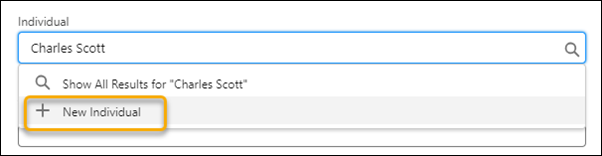
In the Individual field, search for the provider’s name. If no Individual record exists
for the provider, create a record by selecting New Individual. Enter
required information in the New Individual screen and save your work.
-
Verify that the Individual lookup field is on the Contact layout. If not, add it.
-
Now create a link from the provider’s User record to their Individual record:
- Verify that the Individual field is on the User Profile layout. If not, add it.
- Navigate to the provider’s User Profile and click Edit.
- In the Individual field, search for the provider’s name. Select the Individual record that you selected when creating a link from Contact.
- Save your work.