


Health Cloud Administration
 j
jSet Up Analytics for Health Cloud: Risk Stratification
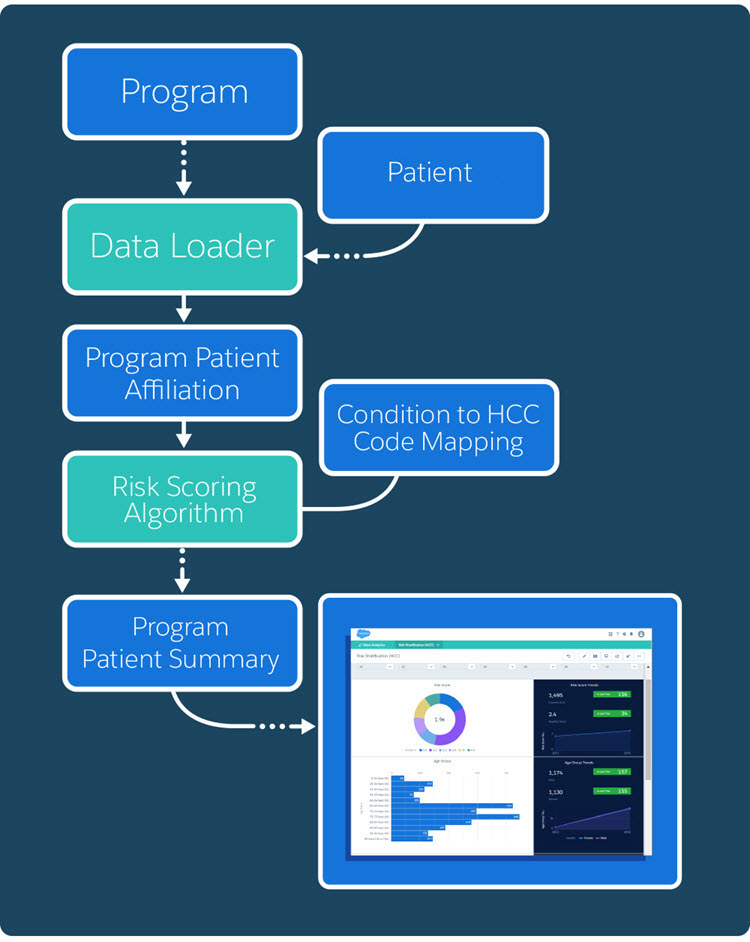
The Analytics for Health Cloud: Risk Stratification app includes embedded dashboards that connect with the Heath Cloud risk scoring tables. The dashboards display the calculated risk scores based on the CMS-Hierarchical Condition Category (HCC) risk adjustment model.
You can install the package that contains the app after you install and implement the core Health Cloud package. To use the Analytics for Health Cloud: Risk Stratification App, add the related tabs to the Health Cloud app. Make sure that each user profile can see the tabs by default.
Each Health Cloud org comes with five CRM Analytics app permission set licenses. Available in English only. Localization isn’t supported, so all users see the same date, time, and number formats, regardless of their own locale and language settings.
Note
-
Enable a Permission Set License for the Admin
Enable the CRM Analytics Plus permission set license to create a permission set for Health Cloud admins. -
Create a Permission Set for the Health Cloud CRM Analytics Admin
After you enable the CRM Analytics Platform permission set license, create a permission set to assign to the Health Cloud CRM Analytics admin user. This permission set enables full access to manage Analytics for Health Cloud. -
Install the Einstein Analytics for Health Cloud: Risk Stratification Package
The Einstein Analytics for Health Cloud: Risk Stratification package contains functionality for the CRM Analytics for Health Cloud: Risk Stratification dashboard. -
Assign Permission Sets for Analytics for Health Cloud
Assign permission sets to give the right users access to Analytics for Health Cloud functionality. -
Add Remote Site Settings for Analytics Patient Lists
Enable remote site settings so that care coordinators can send patient lists from the Analytics for Health Cloud dashboard to the Health Cloud console. -
Give Your Users Access to CRM Analytics
Assign the appropriate permissions so that users can view reports and dashboards in Analytics Studio, and view patient data. -
Set Up and Start Risk Scoring Dataflow
Set up row-level security to restrict access to records as needed. Schedule the app to refresh daily to assure that it’s using up-to-date data. -
Set Up Dashboards
Upload extended metadata (XMD) files to make sure that all custom colors, labels, and quick actions are available for dashboards in Analytics for Health Cloud. Extended metadata (XMD) enables you to customize the formatting of dataset fields and their values in CRM Analytics dashboards and lenses. If you modify the XMD for a dataset, every UI visualization that uses the dataset shows the modified format. -
Add Picklist Values and Page Layouts for CRM Analytics
When you upgrade an existing Health Cloud org to use Analytics for Health Cloud: Risk Stratification, you must add extra picklist values to the Account record type. Also, make sure to add extra fields to the page layouts for objects that are used to calculate patient risk scores. -
Add Risk Scoring Record Types to the Admin Profile
To expose CMS Risk Scoring data in an CRM Analytics dashboard, you must add the associated record types to the Health Cloud admin profile. -
Health Cloud Risk Scoring Data Tables
Several Health Cloud tables hold the information that is used to aggregate and calculate patient data. Once calculated, this information appears in CRM Analytics dashboards so that your company can make informed care decisions. -
Recalculate Patient Risk Scores
You can recalculate patient Centers for Medicare and Medicaid Services (CMS) risk scores in Health Cloud with a batch Apex job using the HcCMSRiskScoringScheduledJob class. You can either run the job manually as needed or schedule it. The patient risk scores are updated based on the recalculation results.