


Health Cloud Administration
 j
jCreate an Assessment with Discovery Framework
Create an assessment form using the OmniScript designer in the OmniStudio app. The
Assessment Component shows assessments that you create using the Discovery Framework.
|
Available in: Lightning Experience Available in: Enterprise and Unlimited Editions with Health Cloud or Health Cloud for Life Sciences |
| User Permissions Needed | |
|---|---|
| To create a Discovery Framework OmniScript: | OmniStudio User AND Create, Read, Edit, and Delete on assessment questions |
-
Create an assessment question set.
- From the App Launcher, find and select Assessment Question Sets.
- Click New.
-
Enter the name of the question set.
Use the name of the overall assessment as the name of the assessment question set. For example, Mental Health Assessment.
-
Enter the developer name.
The developer name can contain only underscores and alphanumeric characters, and must be unique in your org. It must begin with a letter, not include spaces, not end with an underscore, and not contain two consecutive underscores. In managed packages, this field prevents naming conflicts for package installations.
- Save your work.
-
Create assessment questions.
- From the App Launcher, find and select Assessment Questions.
- Click New.
- Enter the Name, Developer Name, Data Type, Category, and Question Text for the question.
- To make this question the active version, select Active.
- When you create a question, the data type that you select corresponds to an OmniScript element that you can add to the OmniScript structure. See Supported Data Types for Questions.
-
Choose the Assessment Question Set for this question.
To associate the question with other Assessment Question Sets, use the Assessment Question Assignments related list on the Assessment Question detail page.
- Save your work.
- Repeat these steps for each assessment question.
-
Create a form.
- On the Assessment Questions list view, click Select Questions.
- In the OmniScript Details section, enter the name of the assessment.
-
Enter the Type of assessment.
The type and sub type give an OmniScript its unique identity. Only one active OmniScript has the same type, sub type, and language at any time. Though not required, it’s recommended that an OmniScript’s type starts with a lower case letter.
- Enter the Sub Type of the assessment.
- Enter a Language.
-
Find the questions you created by selecting the Question Set (1).
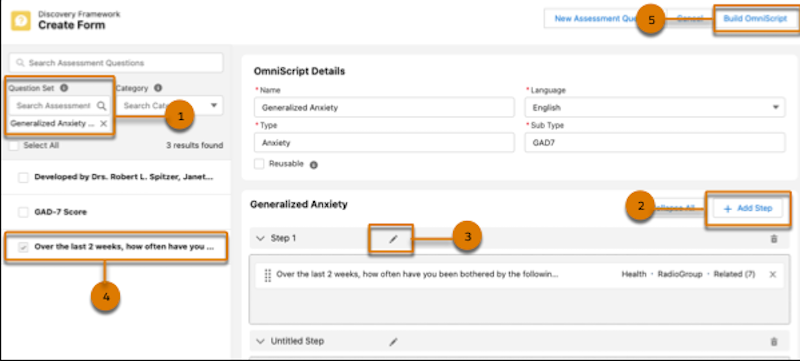
- To add more steps, click Add Step (2).
- Edit the name of the step (3).
-
Drag each question into a Step (4).
Steps correspond to the questions in your form. You can group multiple questions in a single step. You can also create multiple steps in a single form.
-
Click Build OmniScript (5).
This operation creates an OmniScript that's of type Discovery Framework for the form, and then opens the OmniScript in the OmniScript Designer on a new tab.
- For Usage Type, select Health Cloud.
- Save your work.
- Use OmniScript Designer to customize the assessment further if needed.
- On the designer header, click Preview to test the form.
-
On the designer header, click Activate Version when you’re ready to
deploy the form.
- Navigate to the Assessment component on the patient record page. Verify that the assessment appears in the All Assessments tab.