
Appearance
Exercise 1: Setup Agentforce Coworker
In this exercise, you'll assign yourself the required permission set and turn on Ask Agentforce so you can run the Merchant Account Manager Agent as a coworker.
TIP
Prerequisites: Complete the Employee Agent and Data 360 chapters first. This exercise assumes the Merchant Account Manager Agent already exists and is grounded in unified Data 360 data.
Step 1: Assign the Ask Agentforce Admin permission set
Open the Setup Menu and click Setup.
In the Quick Find, search for Users and select Users.
Select your user record.
Select Add Permission Sets.
Add the Ask Agentforce Admin permission set.
Refresh the page.
Step 2: Turn on Ask Agentforce
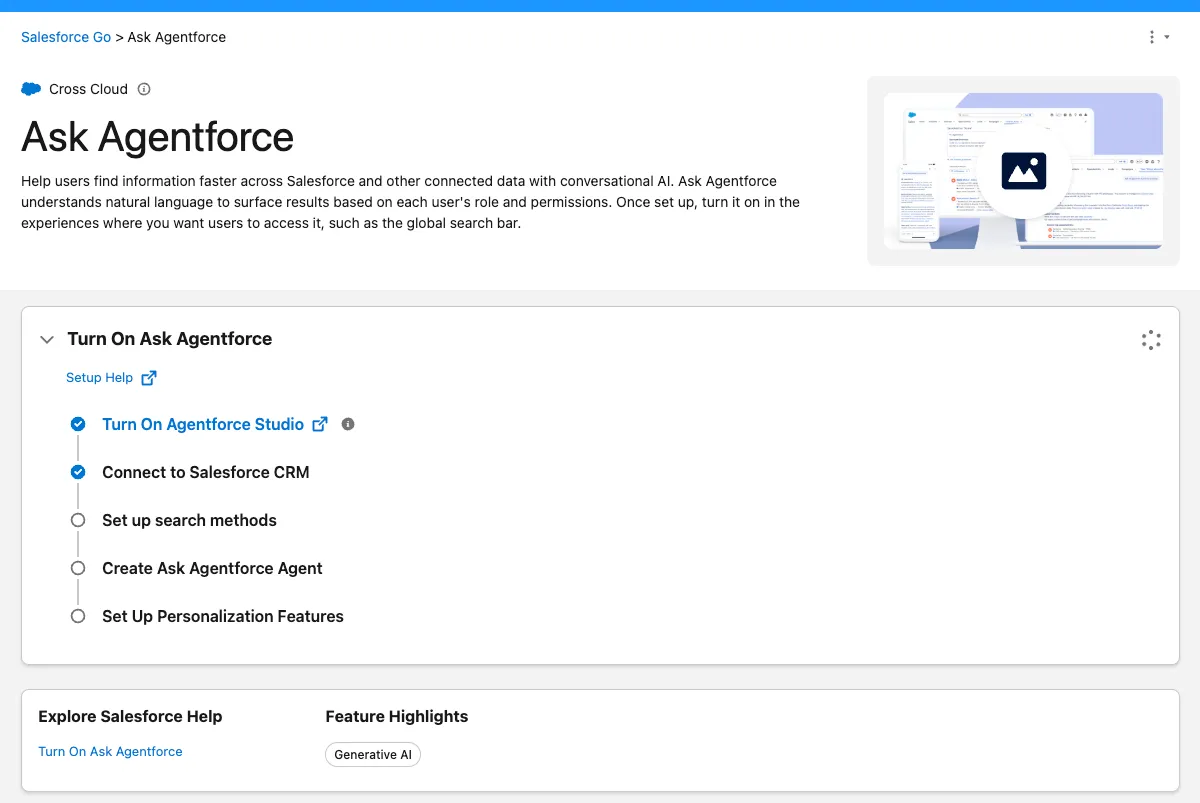
In the Setup Quick Find, search for Ask Agentforce.
Select Get Started with Ask Agentforce.
Click Get Started.
Under Turn On Ask Agentforce, click Turn On.
Click Confirm.
TIP
It takes a few minutes to provision Ask Agentforce.
Step 3: Add data to Ask Agentforce
Once Ask Agentforce is ready to go, add the data it should draw on.
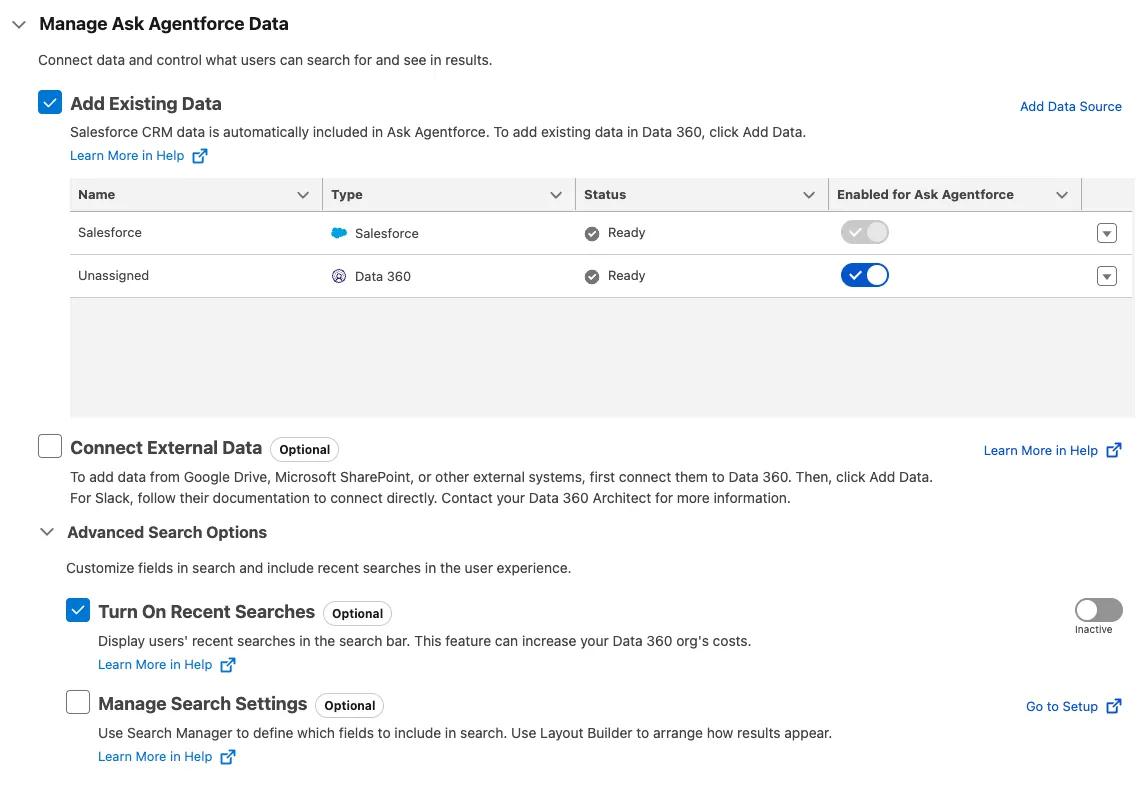
Under Manage Ask Agentforce Data, select Add Existing Data.
Toggle Data 360 on.
TIP
You can also add external data from Google Drive, SharePoint, Slack, and other systems.
Toggle on Recent searches.
Step 4: Turn on the End User Experience
Turn on End User Experience.
Under Global Search Bar, click Manage.
Accept the Terms and Conditions and click Turn On.
Step 5: Grant access to Ask Agentforce
Under Manage Access to Ask Agentforce, click Manage.
Select your user and click Assign.
Click Done.
Summary
You assigned the Ask Agentforce Admin permission set, turned on Ask Agentforce, added Data 360 (plus recent searches) as data sources, enabled the end user experience, and granted yourself access, preparing your org to run the Merchant Account Manager Agent as a coworker. Next, you'll use the Coworker.