Health Cloud Administration
 j
jMake Providers Available for Appointment Scheduling
To make a provider available for appointment scheduling, edit the Salesforce Scheduler
permission set and then assign the permission set to all relevant providers.
|
Available in: Lightning Experience Available in: Enterprise and Unlimited Editions with Health Cloud |
| User Permissions Needed | |
|---|---|
| To use Salesforce Scheduler |
Schedulable resource add-on AND Salesforce Platform Starter license |
- Add providers as users in the org.
-
Create a permission set with the Salesforce Scheduler permission set license.
- From Setup, in the Quick Find box, enter Permission Sets, and then select Permission Sets.
- Click New.
- Enter a label, API name, and description for your permission set. To keep it simple, use Salesforce Scheduler Resource.
- In the License picklist, select Salesforce Scheduler, and click Save.
- On the permission set overview page, under System, click System Permissions.
- Click Edit.
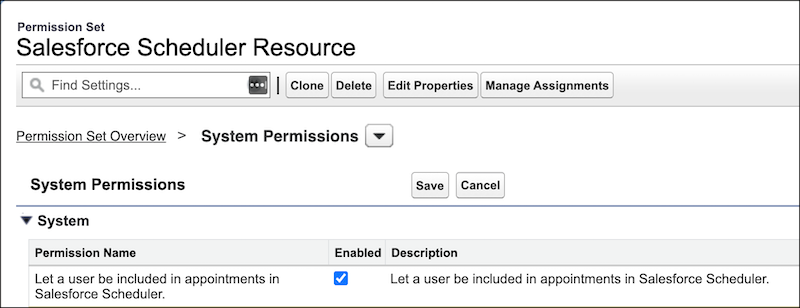
- Enable the Let a user be included in appointments in Salesforce Scheduler permission.
- Click Save.
- In the Permission Changes Confirmation dialog, click Save.
-
Assign the Salesforce Scheduler Resource permission set to the users who you have created
or identified to be available as providers. Assigning the permission set automatically assigns
the associated permission set license to the user.
- On the Salesforce Scheduler Resource permission set overview page, click Manage Assignments, and then click Add Assignments.
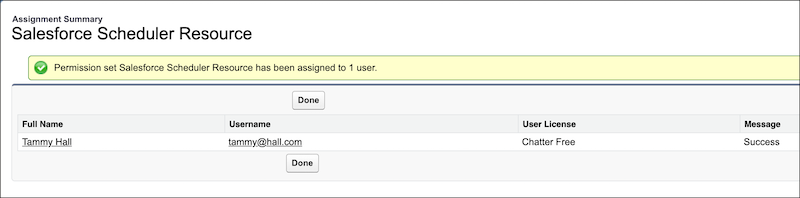
- Select the users who you want to assign the Salesforce Scheduler Resource permission set to, and then click Assign.
- Click Done.