


Health Cloud Administration
 j
jConfigure Visit Types
Create visit types to help users view appointment availability for relevant providers.
To set up a Visit Type, create a Work Type record.
|
Available in: Lightning Experience Available in: Enterprise and Unlimited Editions with Health Cloud |
| User Permissions Needed | |
|---|---|
| To use Health Cloud | Health Cloud Foundation permission set |
Another name for a Visit Type is an Appointment Template.
A Visit Type is a category of a Work Type object, but it's not necessarily a clinical category. In Health Cloud, visit types describe the timing, duration, or importance of a visit, or reason for a visit. For example, you can create visit types for an annual physical, follow-up, diabetes checkup, or physiotherapy. The Health Cloud data model stores information about each visit type.
- If you’re using Salesforce Scheduler as your scheduling engine, the Salesforce data model stores information about which providers have specialties that let them service specific Visit Types. Salesforce Scheduler only serves up appointment availability from these providers.
- If you’re using an external scheduling engine, Salesforce sends an appointment request to the system with the desired visit type. That external scheduling engine interprets the message, finds providers for that visit type, and returns appointments from those providers.
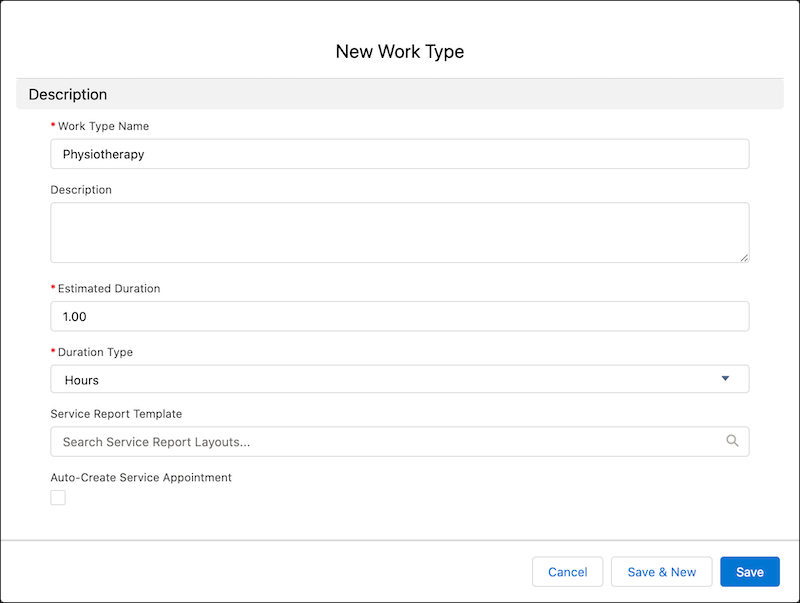
- In the App Launcher, find and select Work Types.
- Click New.
-
For Work Type Name, enter a name for the Visit Type.
The name of the Work Type record becomes available as a value in the Visit Type picklist.
- Under Description, add extra details about the Visit Type.
-
Optionally select an Operating Hours record.
If you don't select operating hours for a work type, the work type is considered to be always available. See Configure Operating Hours for Providers and Facilities.
- Under Estimated Duration, add a value for the expected time needed for the visit type.
-
Specify the unit of time in Duration Type, either Hours or Minutes.
-
If you're using Salesforce Scheduler, entering values for these fields is optional:
- Block Time Before Appointment — Preparation time before a meeting.
- Block Time Before Unit — Hours or Minutes.
- Block Time After Appointment — Wrap up time after a meeting.
- Block Time After Unit — Hours or Minutes.
- Timeframe Start — Start of the available appointment time range presented to the user.
- Time Frame Start Unit — Hours or Minutes.
- Timeframe End — End of the available appointment time range presented to the user.
- Time Frame End Unit — Hours or Minutes.
External schedulers don't use these fields. - Save the record.