Health Cloud Administration
 j
jShow Assigned and Past Provider Badges
Often, a number of care providers and healthcare practitioners are involved in a
patient’s care. To easily schedule appointments with the required practitioner, such as the
primary care physician, you must display assigned and past provider badges on the provider’s
card.
|
Available in: Lightning Experience Available in: Enterprise and Unlimited Editions with Health Cloud |
| User Permissions Needed | |
|---|---|
| To provide access to features not covered under the Health Cloud Standard permission set: | Health Cloud Permission Set License |
If you’re bringing in patients from an external system, such as an EHR system, make sure you create an Intelligent Appointment Management URL Configuration. See Connect to the External Scheduling System.
- Make sure Reciprocal Roles and Contact-Contact Relationship objects are set up. See Set Up Reciprocal Roles and Relationships for Intelligent Appointment Management.
-
From the App Launcher, select Healthcare Practitioner Facility, then go to the record
associated with the Primary Care Physician.
- Make sure the checkbox for Primary Care Physician is selected. See Connect Healthcare Practitioners with Facilities.
- If you're using Salesforce Scheduler, make sure the provider is referenced in the Service Territory Member field.
- From Setup, go to Intelligent Appointment Management Configuration, then add PCP or Primary Care Physician in the Assigned Provider Role field.
- Make sure you add the Healthcare Appointment Schedule component to the patient’s Person Account page layout. See Enable Care Coordinators to Schedule Appointments for Patients.
-
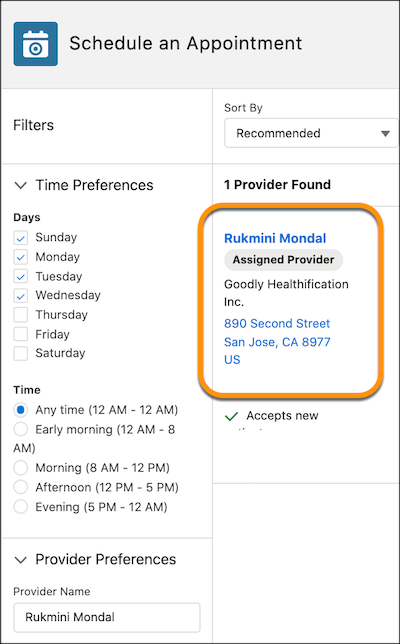
Show assigned and past providers in the Appointments tab. The Past Provider badge
automatically appears when the patient's medical data for the last year includes providers the
patient has received care from.
- From the App Launcher, find and select Accounts to list the Person Accounts that represent patients.
- Open the record for a patient by clicking the name.
- In the Appointments tab, select a visit type.
- Select your preferences for the provider. Select the day and time when you want to schedule the appointment, the provider, their specialty, and the facility they’re associated with.
-
Select Search.
Assigned and past providers show up in the search results.